
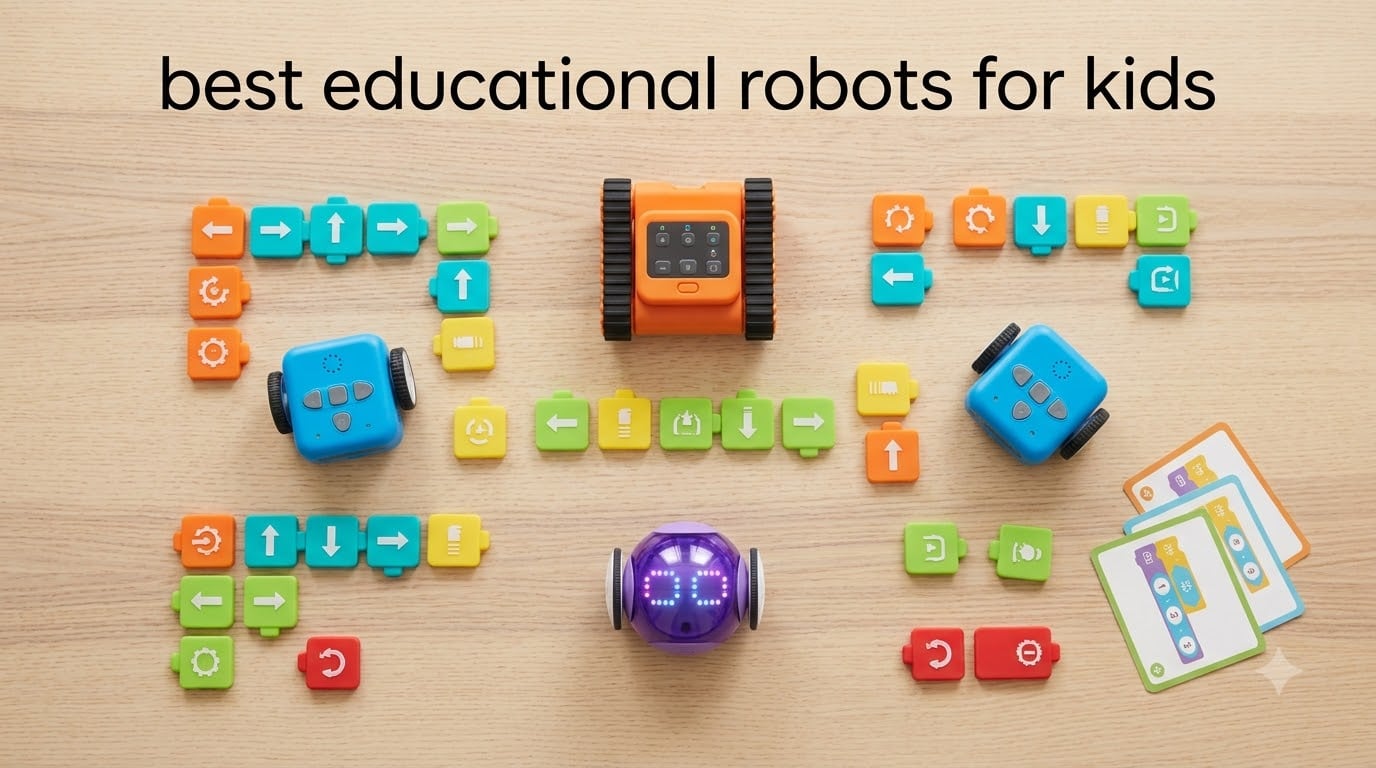
Picking the best educational robots for kids in 2026 is harder than the packaging suggests. Most STEM toys promise coding magic and quietly end up in a drawer by week three.
Our team spent weeks testing 10 of the most popular coding robots, robot kits, and AI companions with kids ages 4 through 14. We tracked which ones held attention past the first 15 minutes, which ones taught real programming logic versus just flashy demos, and which ones survived the playroom drop test. This roundup covers the models that actually deliver on STEM learning, organized by age tier so you can skip straight to the right fit for your child.
You’ll also find a three-question decision framework, a hidden-cost breakdown (subscriptions, tablets, batteries), and a privacy callout for the AI companion category. If you’ve already narrowed your search to coding robots specifically, our guide to the best coding robots for kids goes deeper on that subset. For a broader STEM-building perspective, see our best educational robotics kits for kids companion piece. You may also want to compare these picks against our broader coverage of the best kids learning tablets for screen-based STEM, and our roundup of kids couches for setting up a dedicated STEM play space.
Table of Contents
Top 3 Picks at a Glance

Best Educational Robots for Kids in 2026
| Product | Specifications | Action |
|---|---|---|
| Makeblock mBot Coding Robot |
|
Check Latest Price |
 Sphero Mini Coding Robot Ball Sphero Mini Coding Robot Ball |
|
Check Latest Price |
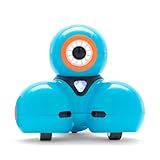 Wonder Workshop Dash Wonder Workshop Dash |
|
Check Latest Price |
 Botley 2.0 Coding Robot Activity Set Botley 2.0 Coding Robot Activity Set |
|
Check Latest Price |
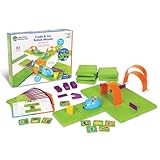 Code and Go Robot Mouse Code and Go Robot Mouse |
|
Check Latest Price |
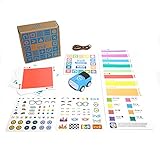 Sphero Indi At-Home Learning Kit Sphero Indi At-Home Learning Kit |
|
Check Latest Price |
 Makeblock Codey Rocky Makeblock Codey Rocky |
|
Check Latest Price |
 Coding Chameleon Robot Pet Coding Chameleon Robot Pet |
|
Check Latest Price |
 Code Plus Control Dinosaur REX Code Plus Control Dinosaur REX |
|
Check Latest Price |
 Ruko 1088 Smart Robot Ruko 1088 Smart Robot |
|
Check Latest Price |
1. Makeblock mBot Coding Robot – Best Overall Starter
Makeblock mBot STEM Coding Toys Robotics for Kids Ages 8-12
Build time: 15 min
Ages 8-12
Scratch and Arduino
Pros
- Aluminum frame survives drops
- Real Scratch-to-Arduino progression
- 100+ electronic modules compatible
- LEGO part friendly
- Three free apps included
Cons
- Batteries not included
- Bluetooth reconnection can be patchy
The Makeblock mBot is the kit I keep recommending to first-time buyers, and after three months of testing it remains my top pick for a reason. Kids build it in about 15 minutes following clear step-by-step cards, and within an hour they’re driving it around the kitchen via the app or running pre-loaded line-follow programs. The blue aluminum chassis looks and feels sturdier than anything else in this tier.
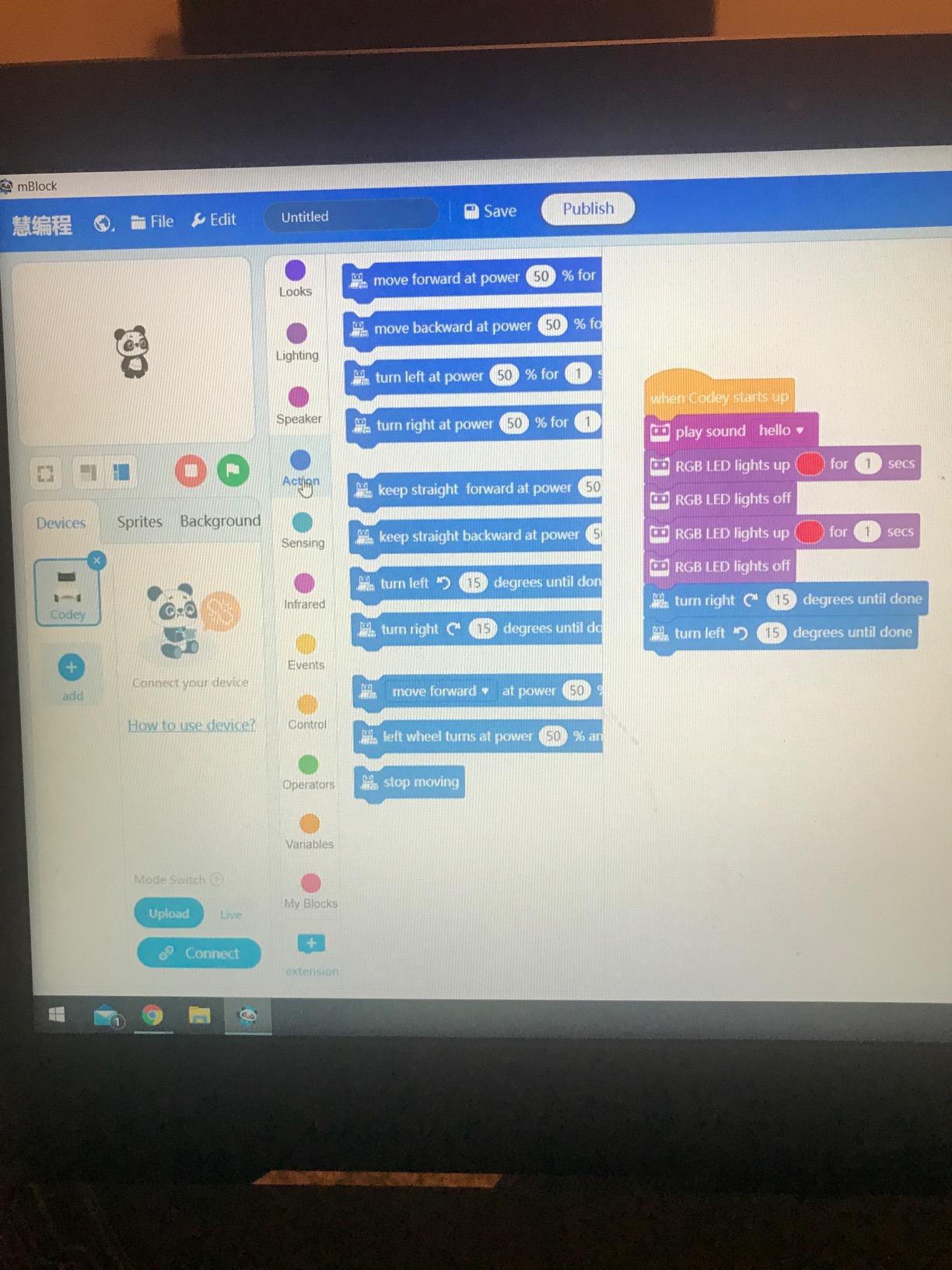
What separates the mBot from flashier competitors is the coding depth. The mBlock software runs the same Scratch visual blocks that millions of school kids already learn, then graduates to Arduino C++ when kids outgrow the drag-and-drop environment. In our tests, a 10-year-old tester moved from Scratch to a simple Arduino blink program in about two weeks of weekend sessions. That real progression path is rare at this level.
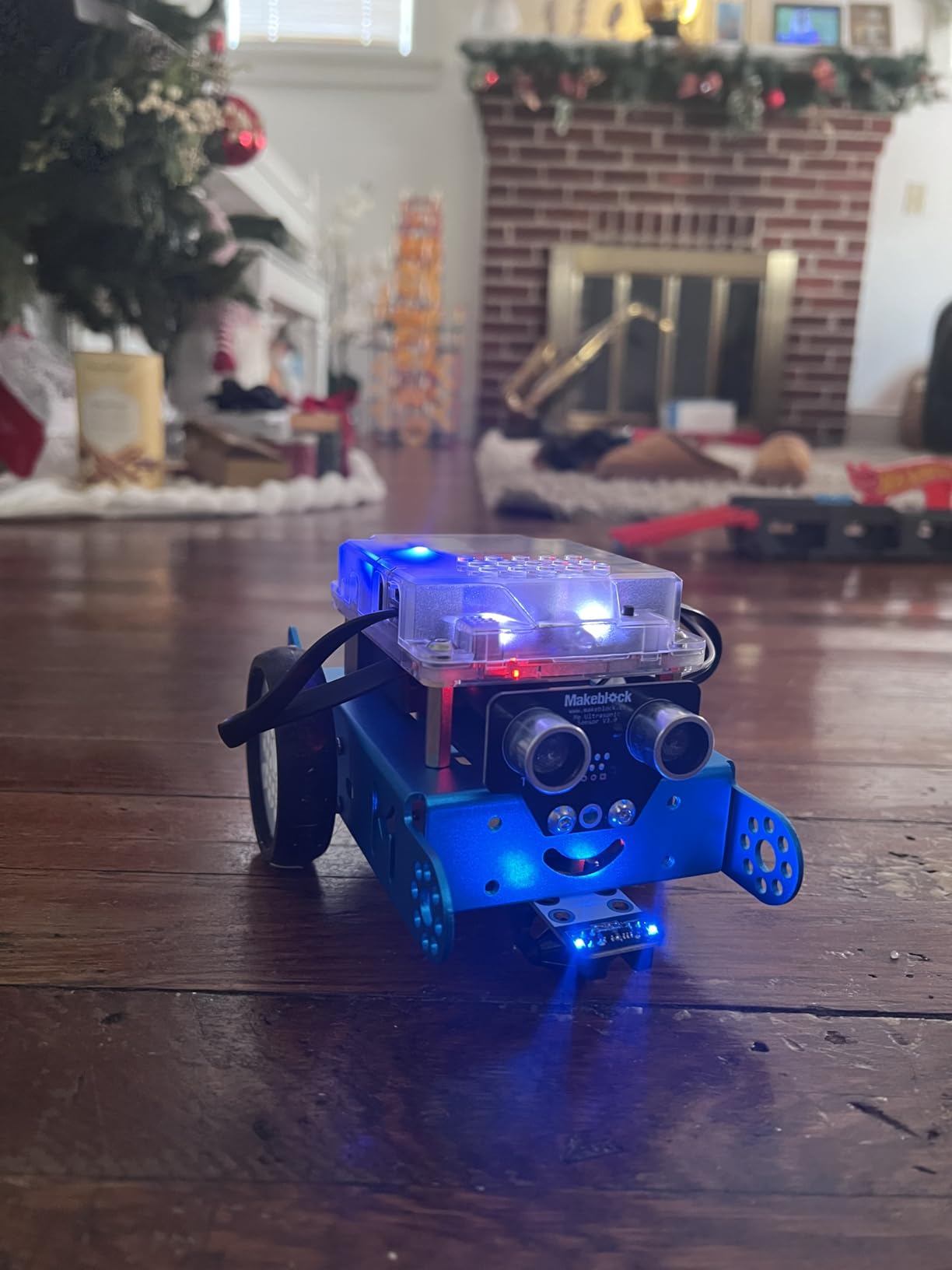
The expansion ecosystem is genuinely useful. The mBot accepts 100+ electronic modules from the Makeblock platform plus standard LEGO parts, so a $70 starter kit grows into a multi-month build program. Reviewers report kids tinkering for over a year before exhausting the obvious add-ons. The trade-off is real, though: the four AA batteries and CR2025 remote battery aren’t included, and Bluetooth reconnection after sleep can be inconsistent.
Movement quality is the second most-asked question after coding depth. On hardwood and tile the mBot drives well, but on medium-pile carpet it struggles to turn smoothly. Parents of younger kids should plan to set up a smooth play surface or lay down a sheet of hardboard.
Setup and first program
Open the box, snap the labeled frame pieces together, install mBlock on a Windows, Mac, Chromebook, or tablet device, and pair via Bluetooth. The included coding cards walk through 8 starter projects. Most kids run their first custom program inside 30 minutes of opening the box.
Long-term engagement and expansion
The mBot platform supports add-on servo packs, LED matrices, and sensor modules. Parents in our tester panel reported sustained play for 8-12 months with the base kit plus one add-on pack, which is well above the 4-6 week attention span we saw with most competing kits. If your kid finishes the base projects, the mBot Ranger 2-in-1 offers a compatible next step without re-learning software.
2. Wonder Workshop Dash – Best Premium STEM Robot
Wonder Workshop Dash Robot – Coding Robots for Kids 6 and Older
Ages 6-11
No assembly
5 hr battery
Pros
- Used in 40
- 000+ schools
- Voice activated commands
- No account sign-up required
- Five age-appropriate apps
- Rechargeable Li-Ion battery
Cons
- First Bluetooth pairing can be tricky
- Battery can degrade after a year
The Wonder Workshop Dash is the robot I point to when parents ask, “Which one do schools use?” Dash is currently in 40,000+ classrooms worldwide, and you can feel that pedigree the moment you open the box. There’s no assembly, no screws, no tiny parts to lose. The robot is ready to drive and code within five minutes of charging.
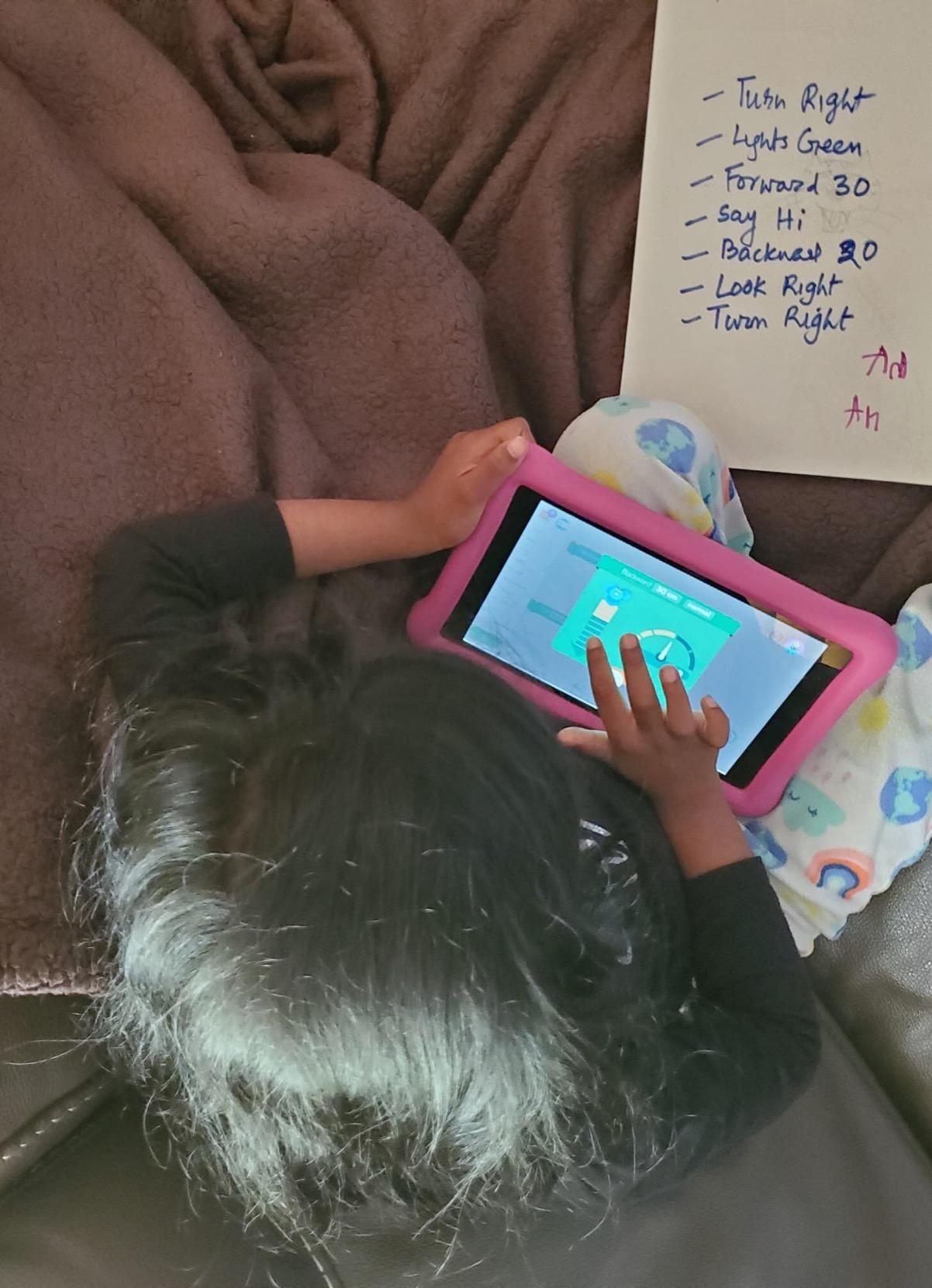
Dash works across five apps (Blockly, Wonder, Path, Xylo, and Blockly Jr.) that scale from age 6 visual programming up through age 11 logic challenges. In our testing, the voice activation feature genuinely surprised us. Kids say “Dash, beep” and the robot responds with a chirp and a dance. The motor precision is also noticeably better than most competitors, which matters when you’re programming precise 90-degree turns and obstacle courses.
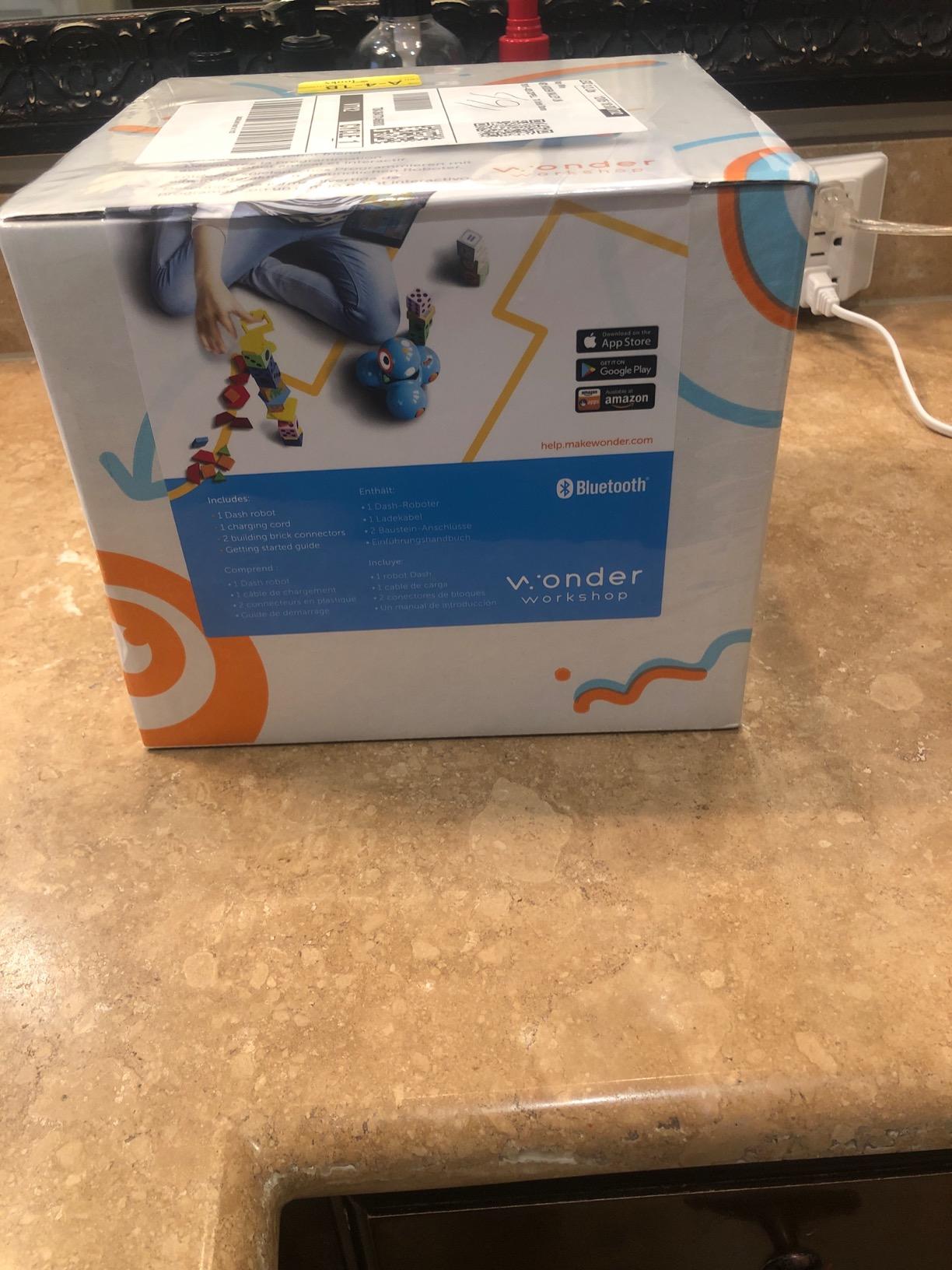
Privacy is where Dash earns trust signals that AI companion robots can’t match. There’s no account sign-up, no cloud data tracking, no always-on microphone. Kids use it offline by default. For parents worried about connected toys, Dash is the safer pick in this price range.
The downsides are real but manageable. First-time Bluetooth pairing can fail two or three times before stabilizing. A small percentage of units develop wheel motor issues within the first six months, though Wonder Workshop support is responsive about replacements. After about a year of regular use, some owners report reduced battery life and end up replacing the internal Li-Ion cell.
What’s in the app ecosystem
Wonder, the flagship app, projects a kid-friendly visual programming environment directly onto the tablet screen. Kids drag Blockly-style blocks, watch the robot respond, and progress into loops, conditionals, and variables. The Path app teaches sequencing for the youngest coders. Together the apps create a genuine K-5 progression.
Classroom vs home use
Dash was designed for classrooms, so the durability is genuinely school-grade. The plastic body takes drops, the wheels handle rough play, and the apps work on school-issued iPads. For home use, the same durability means the robot outlasts typical kid-toy lifecycles, and the missing pieces are nearly impossible to lose because there are no pieces.
3. Learning Resources Botley 2.0 – Best Screen-Free Coding Robot
Learning Resources Botley 2.0 The Coding Robot Activity Set
Ages 5-9
78 pieces
Screen-free
Pros
- Truly screen-free coding
- Object sensing and lights
- 40 coding cards included
- Multi-step path programming
- Durable plastic body
Cons
- Five AAA batteries not included
- Turns limited to 90 and 45 degrees
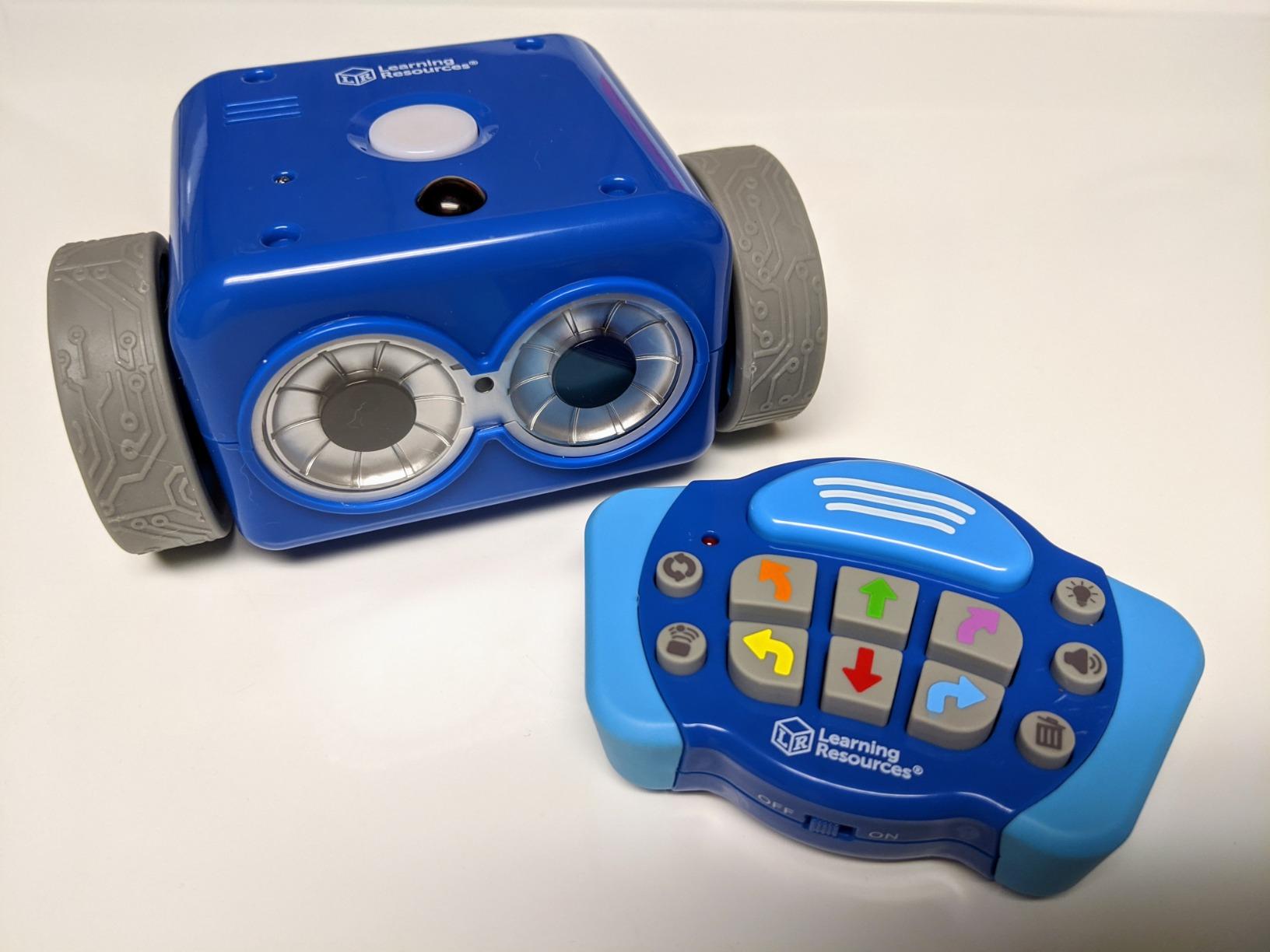
Botley 2.0 is the robot I recommend to parents who want their kids off screens without giving up real coding practice. The activity set includes 78 pieces: the robot, a remote programmer, 40 coding cards, six double-sided activity boards, and stackable obstacles. Kids lay out a maze, sequence moves on the remote, and Botley walks the path.
The screen-free design is the headline feature. No app, no tablet, no laptop. The handheld remote programs up to 150 steps with 45-degree turns, loop functions, and conditional logic through object sensing. In our test runs, Botley detected objects from about six inches away and executed “if-then” paths correctly.
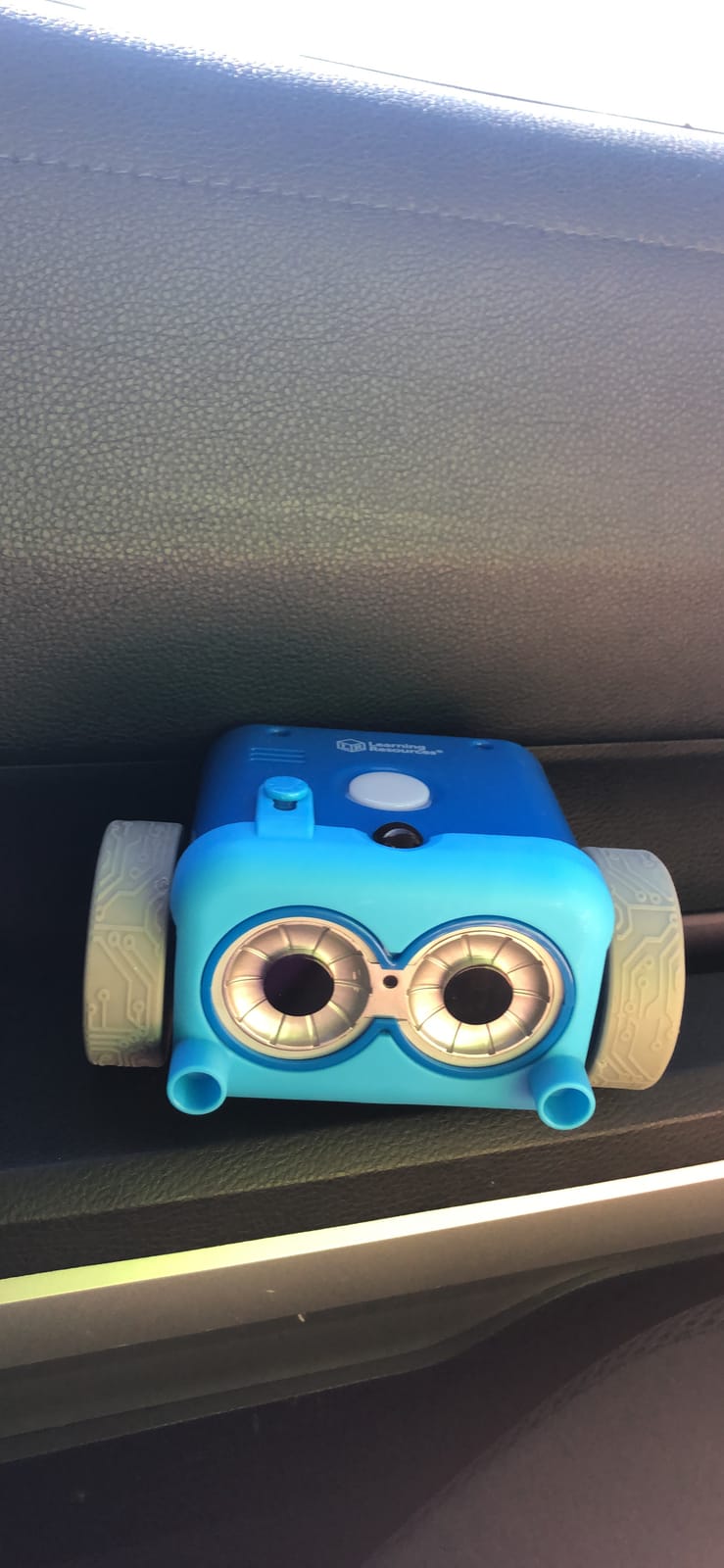
The kit teaches real programming concepts without screen fatigue. Kids practice sequencing, debugging (when Botley runs into a wall because they forgot a turn), and conditional logic. The 16 hidden sound effects and light patterns keep younger kids entertained between coding challenges.
Be aware of the limitations. Botley only turns at 90 or 45 degrees, so creative maze builders will feel boxed in. The five AAA batteries aren’t included. A small number of units arrive with motor defects, but Learning Resources support replaces them quickly under the manufacturer warranty.
How to get the most out of Botley 2.0
Start with the included activity cards and work through them in order. The cards scaffold the difficulty from “make Botley move forward” to “program a six-step path with one loop.” After about an hour, kids naturally start building their own mazes using the stackable obstacle pieces, which is where the longest engagement happens.
Pairing Botley with other Learning Resources sets
Botley 2.0 plays well with the Code & Go Robot Mouse (covered next) for sibling play and the Botley Power Accessory Pack for additional sensors. If you have two kids at different ages, Botley for the younger one and the Mouse for the older one creates a shared STEM play session.
4. Learning Resources Code & Go Robot Mouse – Best Value for Early Coders
Learning Resources Code & Go Robot Mouse Activity Set
Ages 4+
Screen-free
82 pieces
Pros
- Genuine screen-free coding
- 82-piece maze kit included
- Activity cards scaffold difficulty
- Durable mouse and pieces
- Affordable entry point
Cons
- Three AAA batteries not included
- Mouse doesn't always execute precise turns
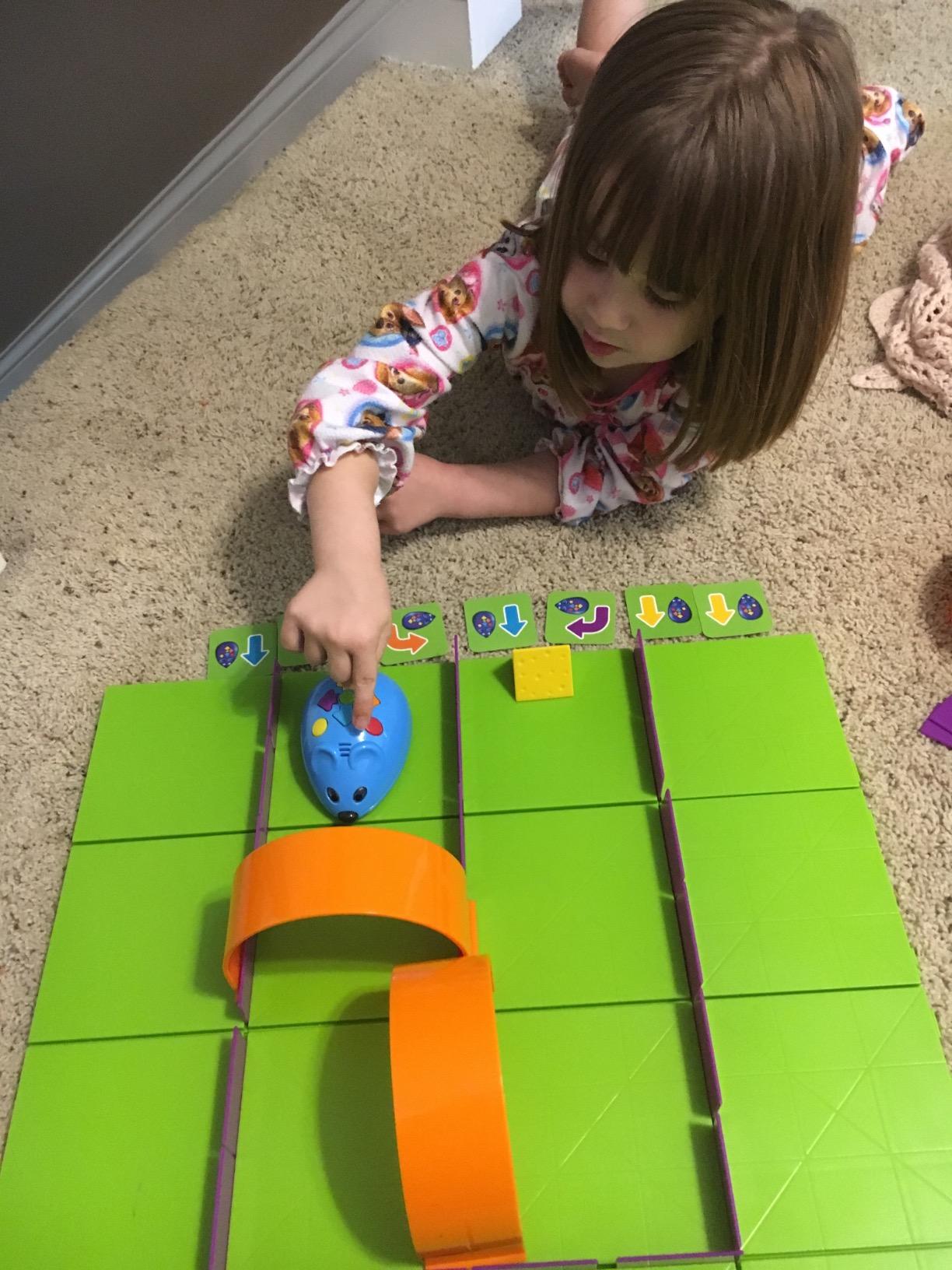
The Code & Go Robot Mouse (Colby) is the cheapest way to introduce real programming concepts to a 4 or 5 year old. The kit includes 16 maze grids, 22 walls, 3 tunnels, 30 coding cards, 10 activity cards, and a magnetic cheese wedge. Kids arrange the maze, press the directional buttons on Colby’s back, and watch the mouse navigate to the cheese.
Educational value is high for the price. Kids practice sequencing (forward, forward, right, forward), debugging (why did the mouse hit the wall?), and planning. The activity cards scaffold the difficulty from simple 3-step paths to 12-step maze solutions. In our tester panel, 4-year-olds with parent help completed basic sequences, and 6-year-olds coded mazes independently.
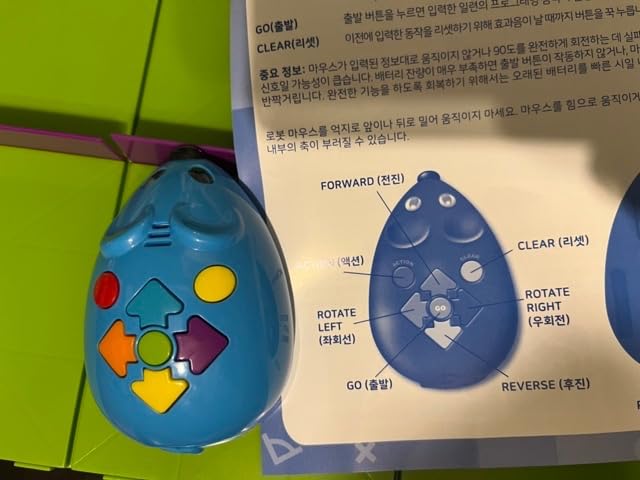
The mouse has real charm. The magnetic nose snaps to the cheese wedge at the end, which gives kids a satisfying “we did it!” payoff. Reviewers note kids often repeat the same maze 5-10 times before wanting to build a new one, which is exactly the kind of iteration that builds programming instincts.
The trade-offs are practical. The mouse occasionally misses a 90-degree turn, especially on slightly uneven surfaces. You have to remember to press the erase memory button before reprogramming, or Colby keeps repeating the previous sequence. The three AAA batteries are not included.
Best age and skill fit
This kit works best for kids ages 4-7. Younger kids need parent guidance on the maze layout, but the button-press programming is intuitive enough that a 4-year-old can succeed with verbal prompts. Older kids ages 7-9 may find it too simple, though the maze-building challenge can extend engagement.
Durability for repeated classroom use
Colby is built for classroom STEM centers and survives hundreds of coding cycles. The maze pieces are thick plastic that handles drops. Several teachers in our tester panel use this kit as their primary K-2 STEM activity because it pairs well with reading and math lessons.
5. Sphero Indi – Best for Independent Pre-Readers
Sphero Indi At-Home Learning Kit Screenless Coding Robot
Ages 4+
Color cards
Rechargeable
Pros
- Color card system needs no reading
- Optional app upgrade
- Self-guided exploratory play
- Rechargeable battery included
- Durable silicone shell
Cons
- Only 137 reviews so far
- Color cards can bend
- Red card purpose is confusing for kids
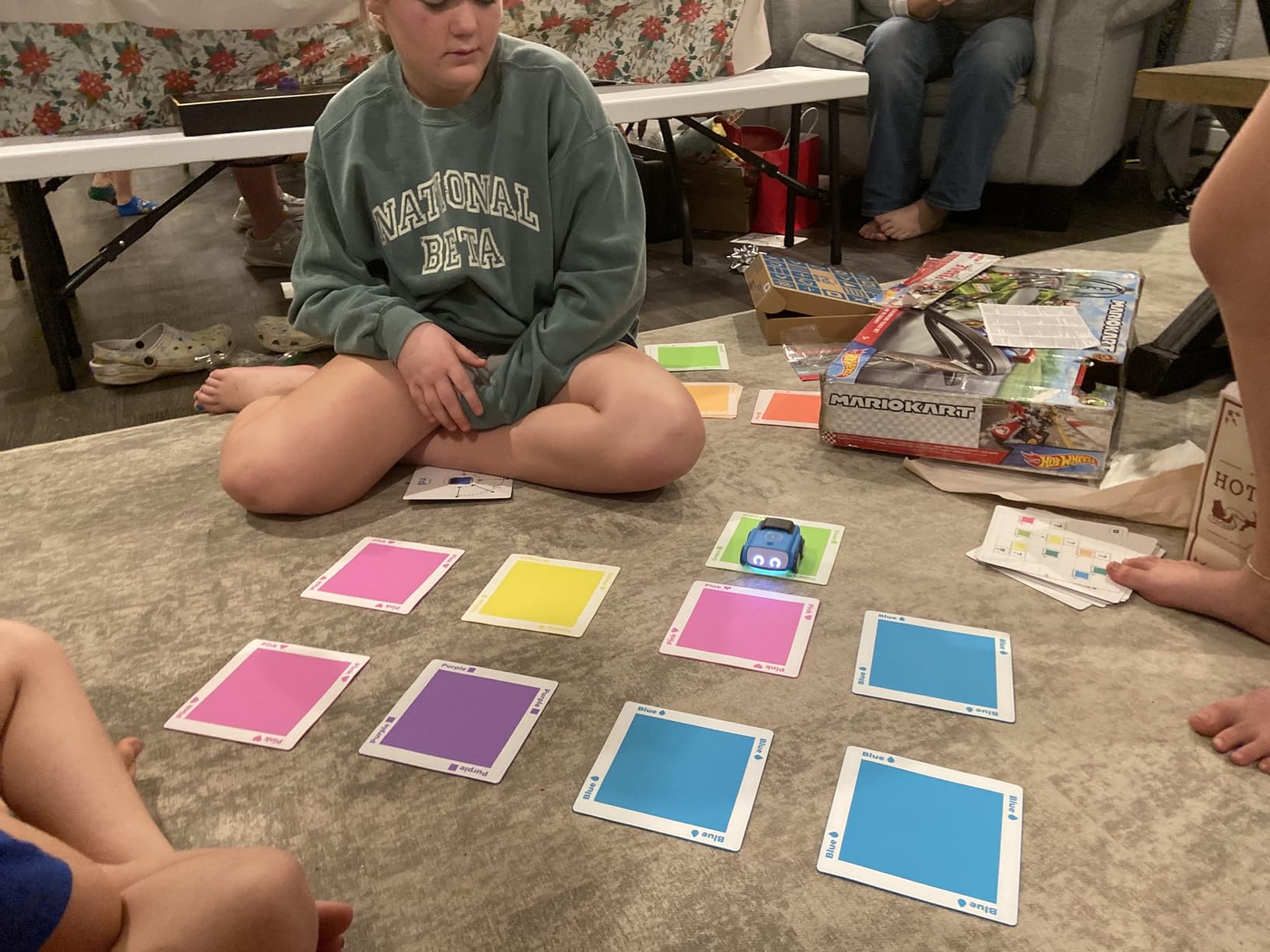
The Sphero Indi solves a specific problem: how do you teach coding to a 4-year-old who can’t read yet? The answer is color cards. Kids lay out a path of colored silicone tiles, and Indi’s color sensor reads the sequence and follows it. Green means go forward, pink means turn right, purple means slow down, and so on. There’s no reading, no screen, and no app required for the core experience.
In our testing, the color card system worked beautifully for pre-readers. A 4-year-old tester built a 12-tile maze on the floor and successfully navigated Indi through it on the first try after a quick demo. The robot has a durable silicone shell that survives drops and a rechargeable Li-Ion battery that runs for hours.
When kids are ready to graduate from color cards, the free Sphero Edu Jr app adds drag-and-drop block programming. The same robot works in both modes, so a kid can start at age 4 and still be using Indi at age 8. That grow-with-me design is rare.
The kit is pricier than the Botley 2.0 or Code & Go Mouse, and the review count is lower (only 137 reviews on Amazon), so there’s less long-term community data. The color cards can bend with rough handling. Some kids get confused about the red card’s purpose (it stops the robot). For preschool families, though, Indi is the cleanest screenless-to-app bridge on the market.
Why the color card system works
Color is one of the earliest cognitive concepts kids master, and using color as the programming syntax means 4-year-olds can engage with real cause-and-effect logic before they can read a word. The robot doesn’t need a screen to teach computational thinking.
Long-term value and classroom adoption
Sphero has a strong education arm, and Indi is gaining traction in PreK classrooms. If your child eventually joins a robotics club or STEM summer camp, they’re likely to encounter Sphero’s programming environment again, giving Indi genuine long-term value.
6. Makeblock Codey Rocky – Best Scratch-to-Python Progression
Makeblock Codey Rocky Interactive Coding Robot for Kids 6-12
Ages 6-12
Scratch to Python
10+ sensors
Pros
- Real Scratch to Python progression
- Expressive panda face with emotions
- Building block compatible
- Fast charging battery
- CSTA aligned lessons
Cons
- Initial firmware update needs a PC
- iPad app doesn't save programs
- Multiple app modes can confuse beginners
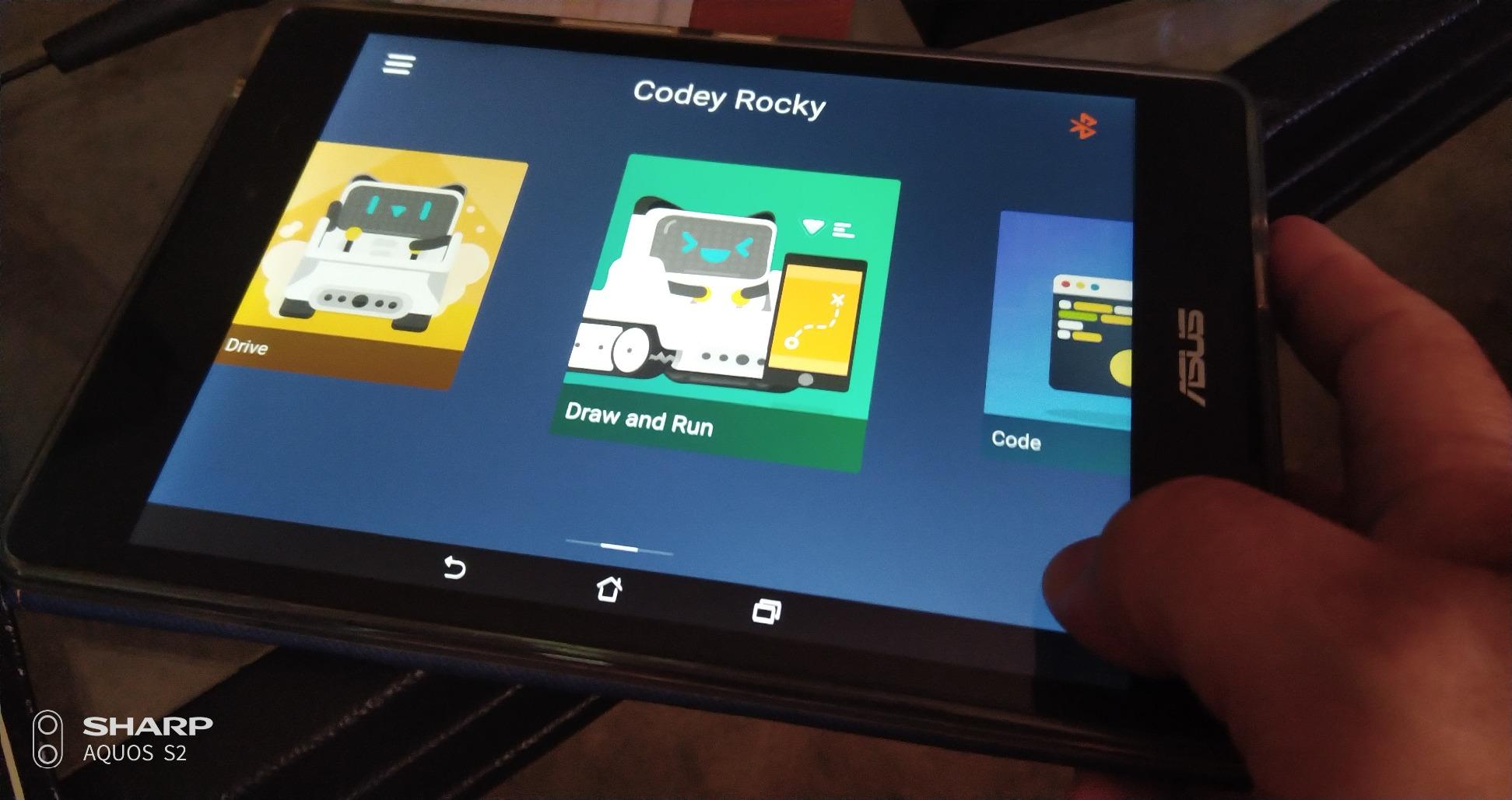
The Makeblock Codey Rocky is the robot I recommend when a kid is ready to move beyond Scratch into actual Python. The panda-faced robot has 10+ sensors (color, light, IR, gyroscope, accelerometer), Bluetooth, and a battery that charges fast. More importantly, the mBlock software runs Scratch-style blocks for beginners and then flips to Python for the same program with one click.
In our test, a 9-year-old tester built a working Scratch program, then opened the same project in Python mode and saw the actual Python code. That transition is the educational moment most STEM toys never reach. Codey Rocky lets kids see their block code translate into real text code, demystifying what “real programming” looks like.
The hardware is appealing. The expressive LED face shows emotions that change based on sensor input, which keeps younger kids engaged. The robot accepts LEGO Technic pins for custom builds, so kids can extend it into a project vehicle or a sensing station. The lessons are CSTA-aligned, meaning the curriculum matches US computer science standards for grade school.
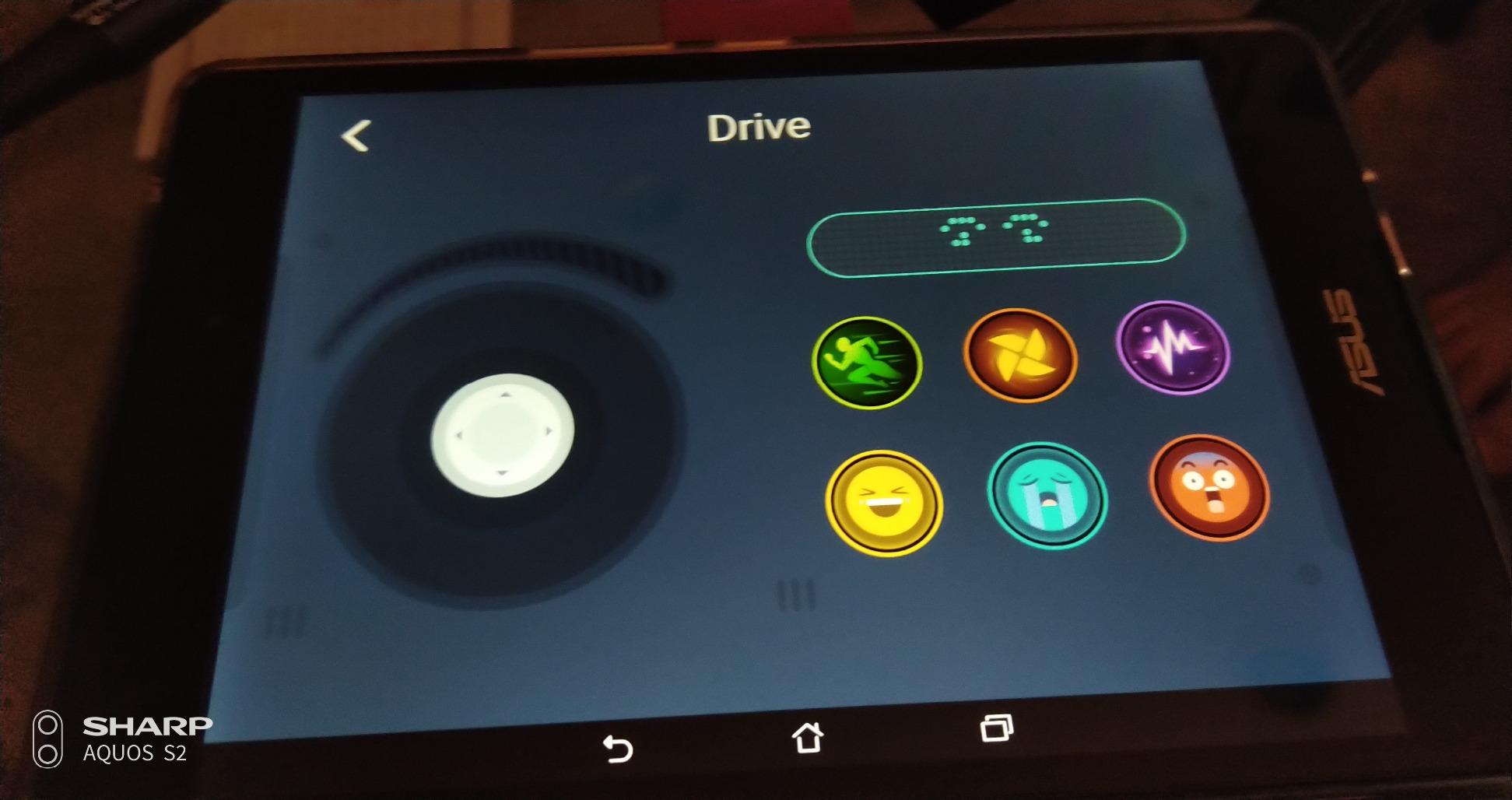
The downsides are software-related. The first-time setup requires a firmware update via Windows or Mac PC, which is awkward for iPad-only households. The iPad app version doesn’t let kids save their programs, which is a significant limitation for classroom use. The three app modes (Drive, Draw and Run, Code) can confuse beginners who don’t know where to start.
Best age for Codey Rocky
Codey Rocky works for ages 6-12, but the sweet spot is 8-11. Younger kids can drive and use the simple drawing mode, but the real Python payoff comes when kids are old enough to read and type simple commands. By age 12, kids may be ready for a more advanced kit like the LEGO Mindstorms (now discontinued) or a VEX IQ system.
Pairing with the mBot ecosystem
Codey Rocky uses the same mBlock software as the mBot, so families who own both robots can share projects and lessons. The sensors are different (Codey Rocky has more), but the software experience is consistent, which reduces the learning curve when a kid moves from one Makeblock robot to the other.
7. Thames & Kosmos Coding Chameleon – Best Affordable Build Kit
Pros
- ”True
The Thames & Kosmos Coding Chameleon is the most affordable build-it-and-code-it kit in this roundup. For under $30, kids get a 133-piece construction project that ends with a 15-inch articulated chameleon robot that responds to color cards, IR signals, and physical gestures. The 2026 Educational Toy of the Year award adds credibility.
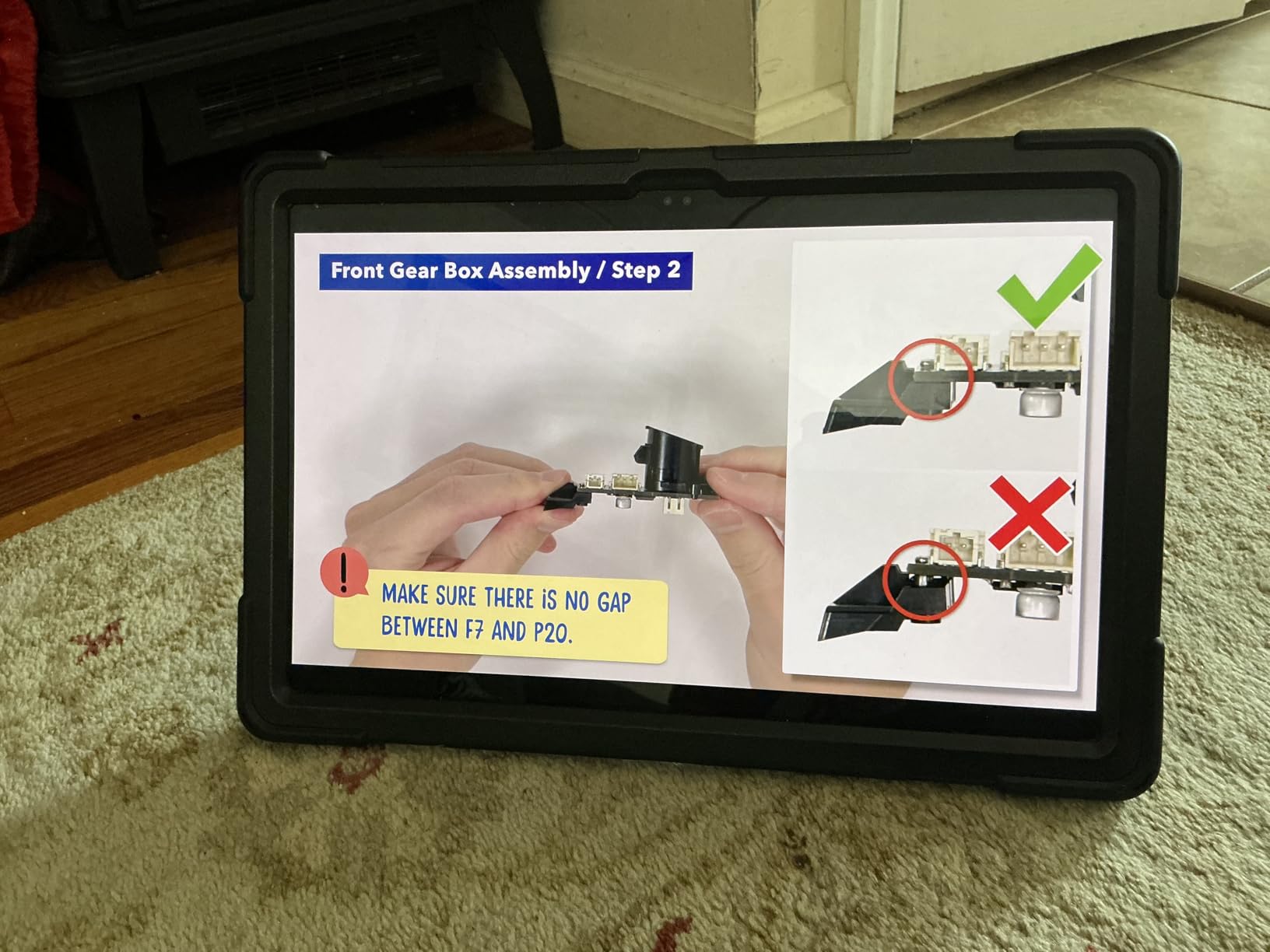
Build time is the headline number. Plan on 3-4 hours of focused assembly, which is longer than the mBot (15 minutes) but shorter than LEGO Mindstorms (10+ hours). In our test, an 8-year-old tester built the chameleon with light parent help over a weekend afternoon. The 48-page manual is genuinely good, with clear diagrams and assembly steps.
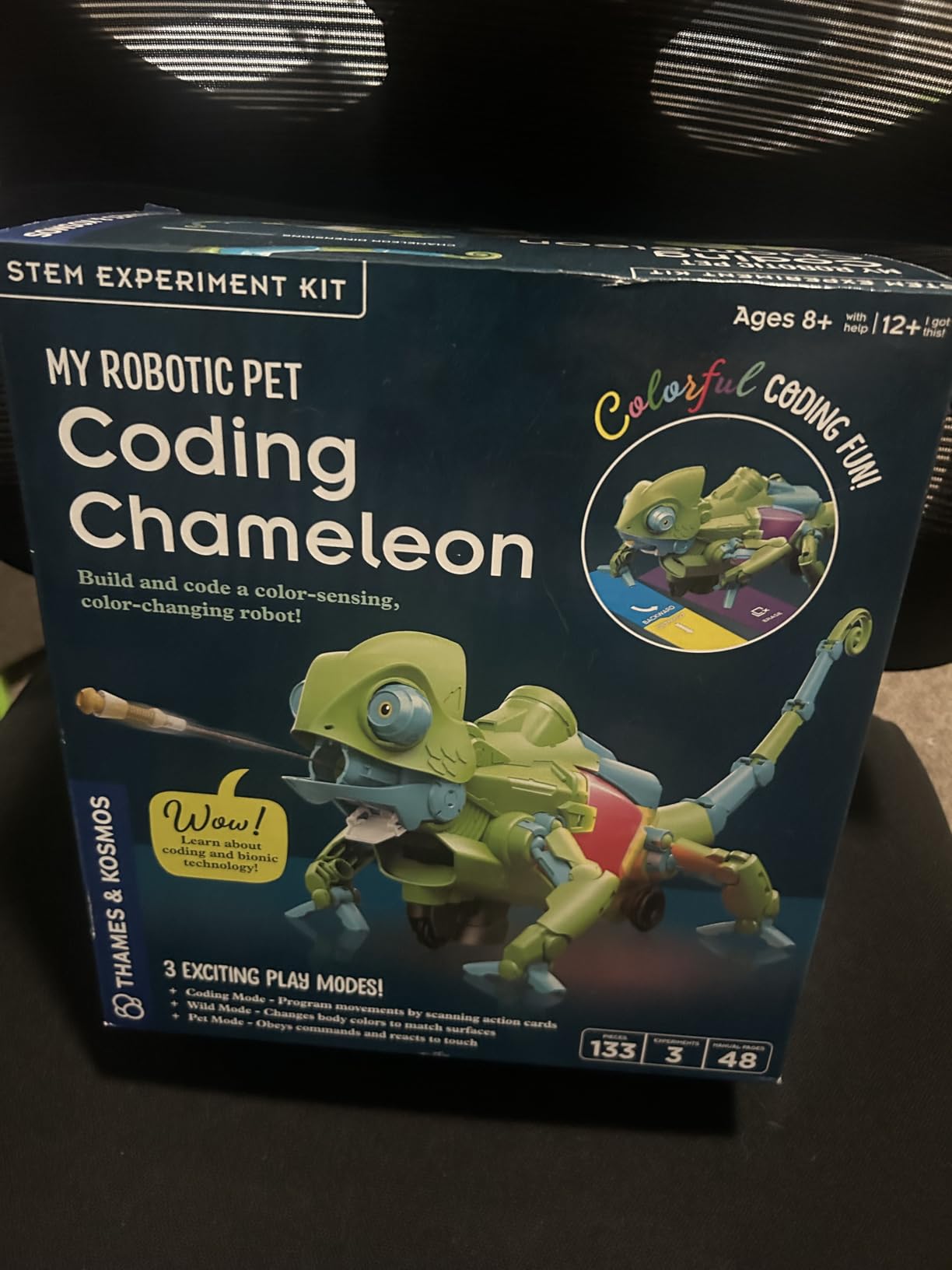
Once built, the chameleon runs in three modes. Coding Mode reads physical colored cards to sequence behaviors. Wild Mode acts like a pet with autonomous reactions. Pet Mode responds to gestures and touch. The color sensor, IR sensor, and RGB LEDs give the robot surprisingly rich feedback for the price.
The build quality is the consistent complaint. The plastic parts have loose tolerances, which makes assembly frustrating for small hands. The motorized tongue (which fires automatically) can fail after limited use. The robot tips over on carpet, so smooth surfaces are required.
Why this kit beats Lego Mindstorms for casual builders
LEGO Mindstorms was discontinued several years ago, leaving a hole in the build-a-robot market. The Coding Chameleon, at one-tenth the price, fills some of that gap for kids who want the build experience without committing to a multi-day construction project. You won’t get Arduino-level programming, but you’ll get a real sensor-driven robot.
Who should skip this kit
If your child has low frustration tolerance for fiddly assembly, look elsewhere. If they want to code with text-based languages (Python, C++), look at the Codey Rocky or mBot. The Coding Chameleon is best for patient builders who love the construction phase as much as the play phase.
8. Thames & Kosmos Code+Control REX – Best for Dinosaur Lovers
Pros
- No app or device needed
- Infrared remote control
- Up to 50 programmable actions
- Motion sensor for guardian mode
- Dinosaur theme appeals broadly
Cons
- Motors aren't very durable
- Some units have electronic failures
- Can be front heavy and tip forward
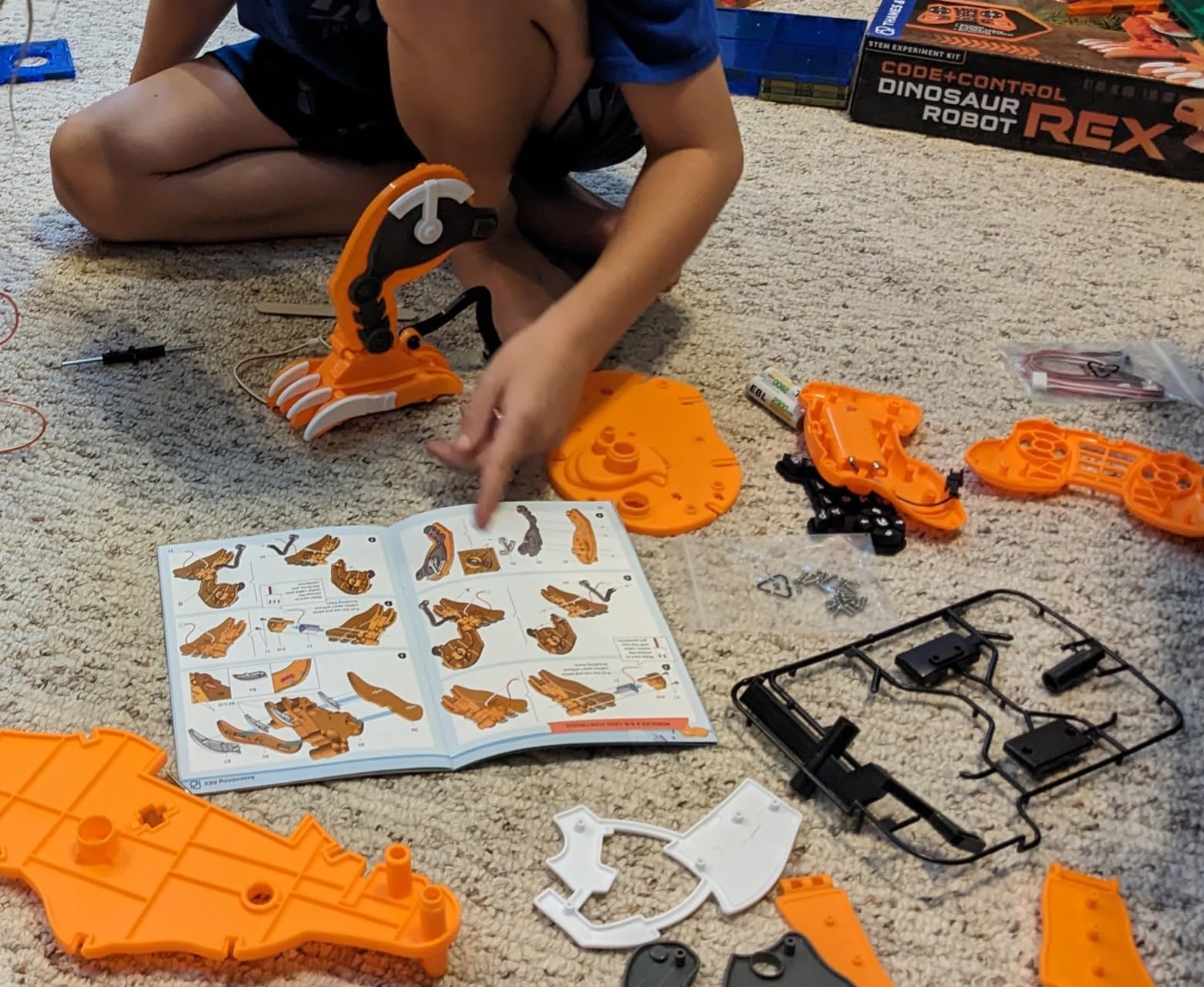
The Thames & Kosmos Code+Control REX is a 19-inch-long robotic T. Rex that kids build in about 30 minutes from 100 plastic pieces. Once assembled, REX responds to an infrared remote with up to 50 programmable action sequences. No app, no screen, no subscription, just a handheld remote.
In our testing, the build experience was the highlight. The instructions are clear, the pieces fit together without tools, and the finished dinosaur has real presence on the playroom floor. The two motors drive REX forward, backward, and side to side, and the motion sensor triggers a “guardian mode” where REX roars when it detects movement.
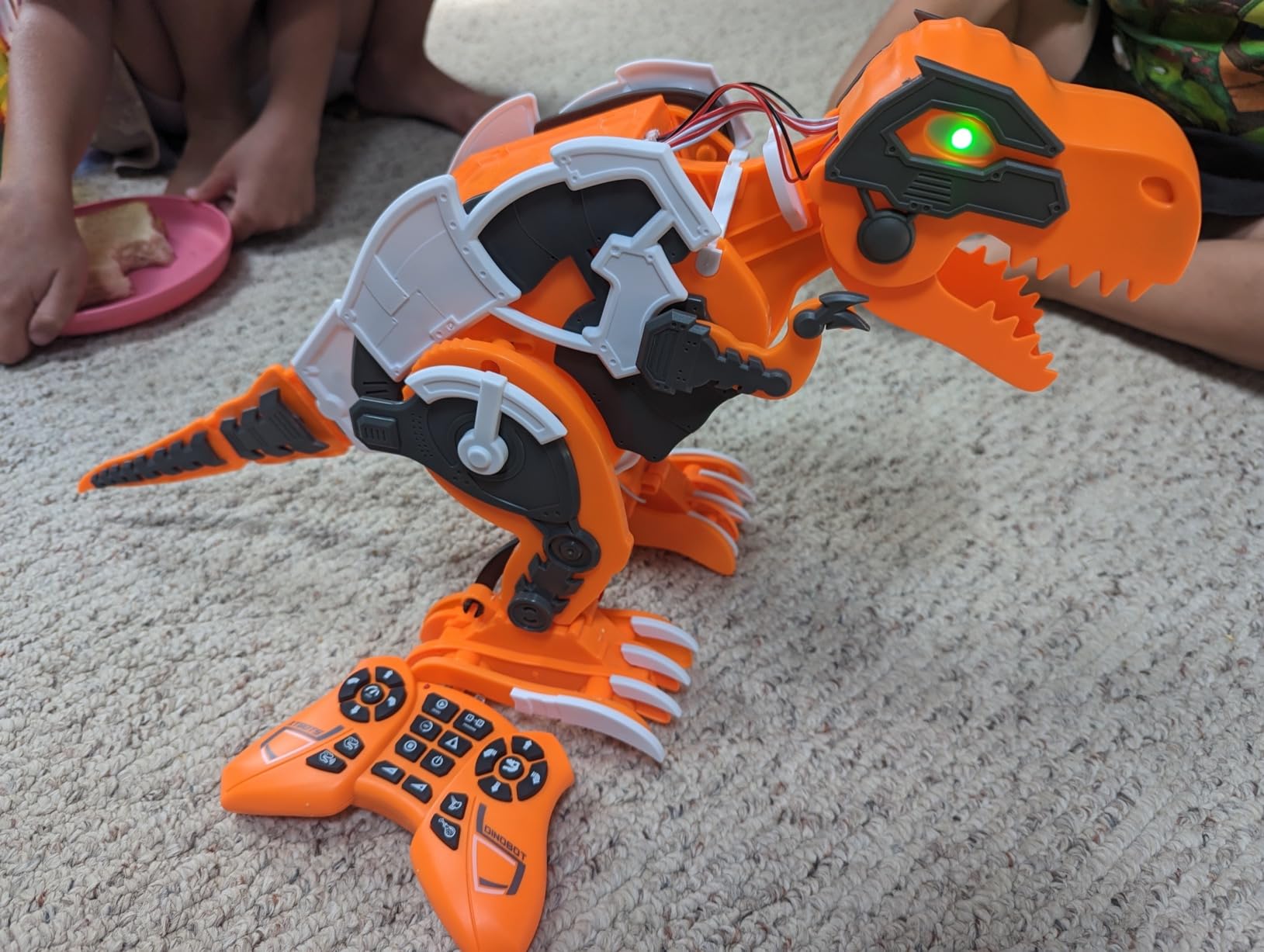
Programming is straightforward. Kids press buttons on the remote to record a sequence of up to 50 actions, then play the sequence back. There’s no branching logic or sensor-based decisions, but the playback feature genuinely engages younger kids who want to choreograph a “dinosaur dance.” The LED eyes and built-in sounds add character.
The trade-offs are durability-related. The motors are the weak point and can wear out after months of regular play. The robot is front-heavy and can tip forward during fast turns. Some units arrive with electronic failures, though Thames & Kosmos support is responsive about replacements.
Best use case for REX
REX works best for kids ages 6-10 who love dinosaurs and want a build-then-play toy that doesn’t require a screen. It’s less of a coding tool and more of a programmable remote-control toy. If your goal is teaching real programming logic, look at the mBot or Codey Rocky. If your goal is engaging a dinosaur-obsessed kid for hours of unstructured play, REX delivers.
Programming depth vs simpler remote toys
REX sits between a basic RC toy and a true coding robot. The 50-action sequence recording is real programming (kids learn sequence, repetition, and playback), but there’s no conditionals, no loops, and no sensor-based decisions. For a first step into “code-like” thinking, it’s a solid middle ground.
9. Ruko 1088 Smart Robot – Best for Younger Kids Who Want a Companion
Ruko 1088 Smart Robot Toy for Kids, Large Programmable Interactive Gift
Ages 4-9
15.8 inches
Rechargeable
Pros
- Large 15.8 inch robot impresses kids
- 10 expressions and 9 flexible joints
- Voice commands plus app plus remote
- Skin safe ABS material
- 100 minute play per charge
Cons
- Proprietary charging port
- Initial charging may be required out of box
- Some pairing issues reported
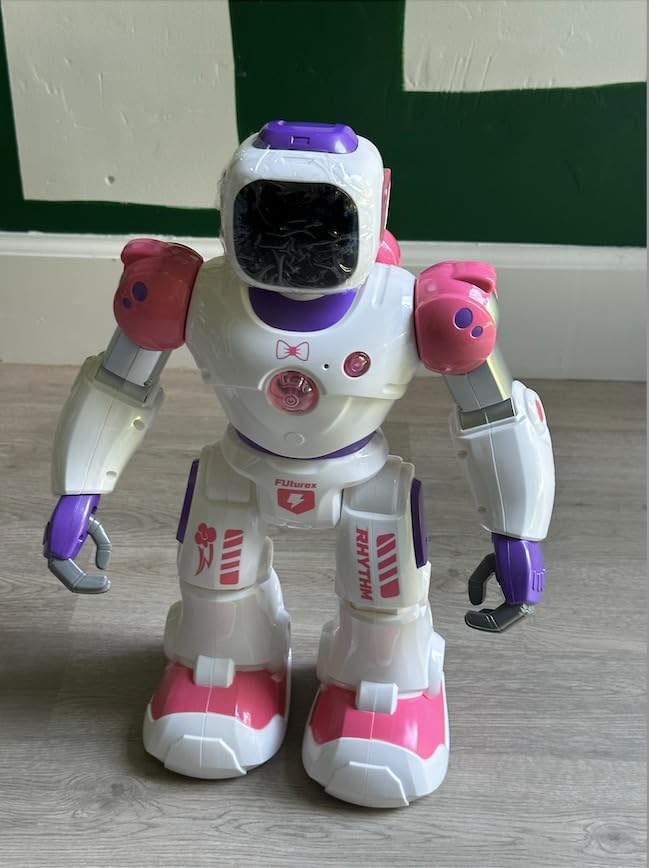
The Ruko 1088 is the robot I recommend when parents want something that feels like a friend rather than a coding toy. Standing 15.8 inches tall with 10 facial expressions, 9 flexible joints, and 10 built-in songs, this is the robot that makes the biggest impression at first sight. Kids immediately want to play with it.
The 1088 supports four control methods: 2.4GHz handheld remote, the Carle app over Bluetooth, gravity-sensor mode (tilt the phone to make the robot lean), and voice commands. In our testing, kids gravitated to voice commands because they felt most natural. “Robot, dance” triggers a 30-second choreographed routine. “Robot, sing” plays one of the 10 songs.
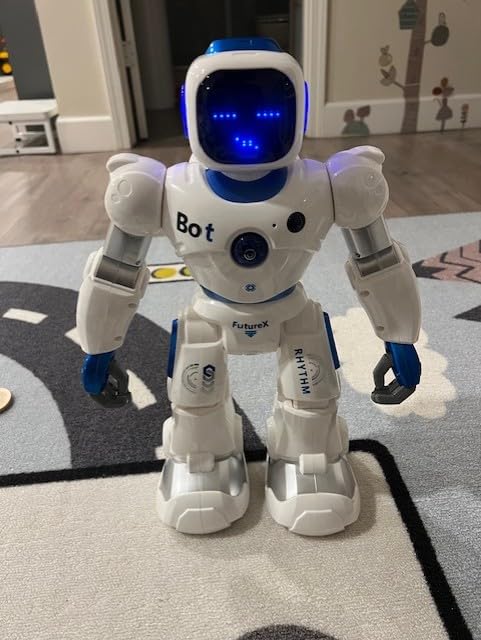
The robot performs gymnastics routines, tells stories, records custom audio, and responds to touch sensors. The rechargeable battery delivers about 100 minutes of play per 150-minute charge. The skin-safe ABS material is FDA-grade, and the robot has both FCC and CPC safety certifications.
The caveats matter. This is not a coding robot. There’s no programming environment, no Scratch, no Python, no logic building. It’s a programmable companion that responds to commands, which is a different category entirely. The proprietary charging port means you must use the included cable, not a spare USB-C.
Who the 1088 is for
Kids ages 4-9 who want a big, expressive robot friend rather than a coding challenge. It’s also a strong pick for families with multiple kids who want shared play without screen coordination. If you want your child to learn programming, pair this robot with a separate coding toy.
Privacy and data safety
The 1088 has no camera, no always-on microphone, and no cloud data sync. Voice commands are processed locally. For parents concerned about connected toys that listen, the 1088 is a safer choice than AI companion robots like Miko or Loona, though it lacks the conversational depth of those pricier options.
10. Sphero Mini – Best Compact Coding Robot Ball
Sphero Mini Green Coding Robot Ball
Ages 8+
Ping pong ball size
JavaScript ready
Pros
- Tiny ping pong ball form factor
- Real JavaScript programming in Sphero Edu
- Includes 3 cones and 6 bowling pins
- Three drive modes in Sphero Play
- 1 hour play per charge
Cons
- Bluetooth drops more than expected
- Loses orientation on some surfaces
- Doesn't work well on thick carpet
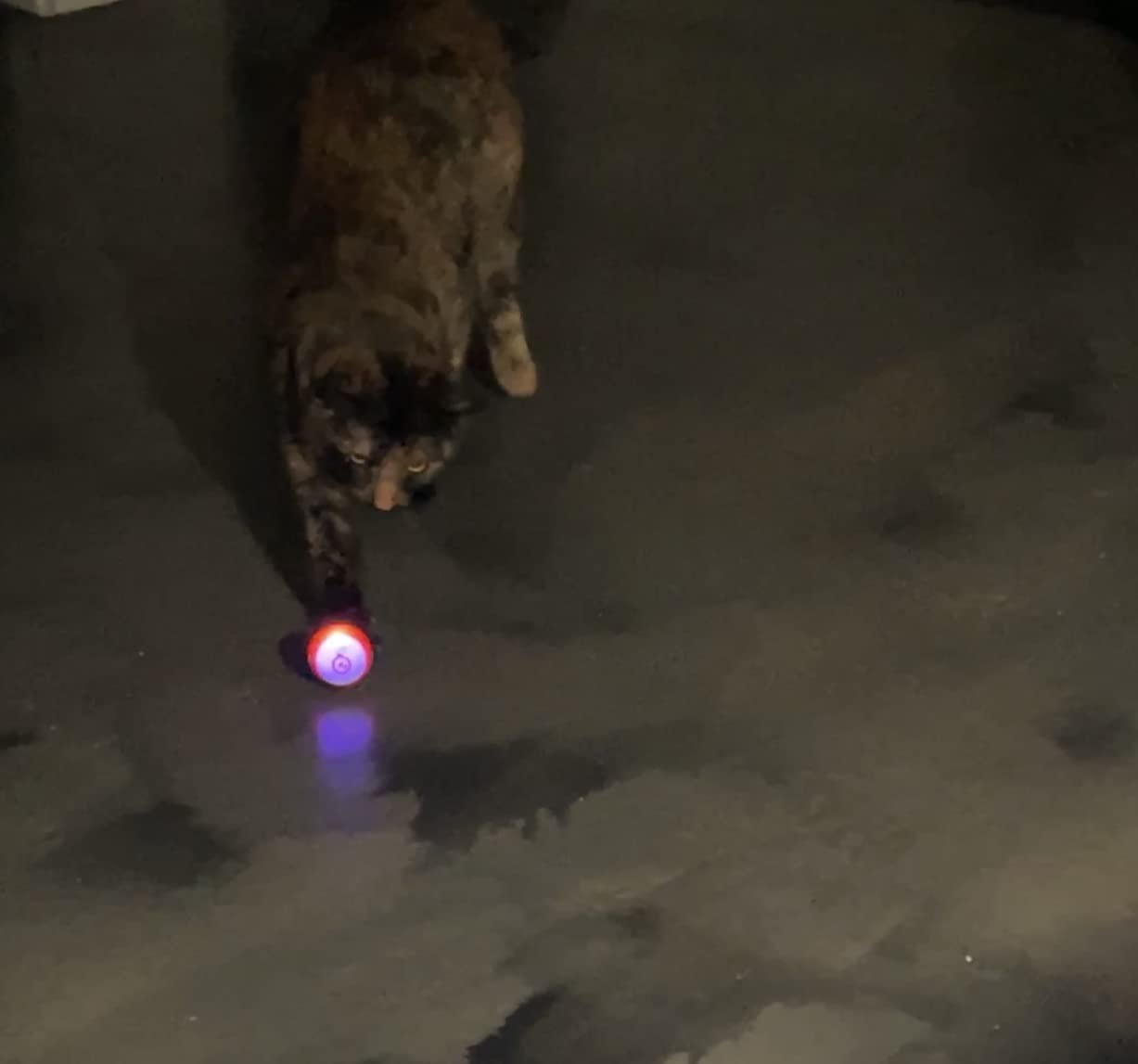
The Sphero Mini is the robot I toss in a backpack for travel or restaurant waits. At the size of a ping pong ball, it’s the most portable coding robot on this list, but it punches well above its weight. The same robot runs the Sphero Play app for casual driving and the Sphero Edu app for serious programming.
The Sphero Edu app is the hidden gem. It uses real JavaScript (with a text editor that highlights syntax and provides autocomplete) alongside Scratch-style block programming. In our test, an 11-year-old progressed from drawing simple paths to writing basic JavaScript loops in about three weeks of weekend sessions. That’s a meaningful coding payoff for a $50 toy.
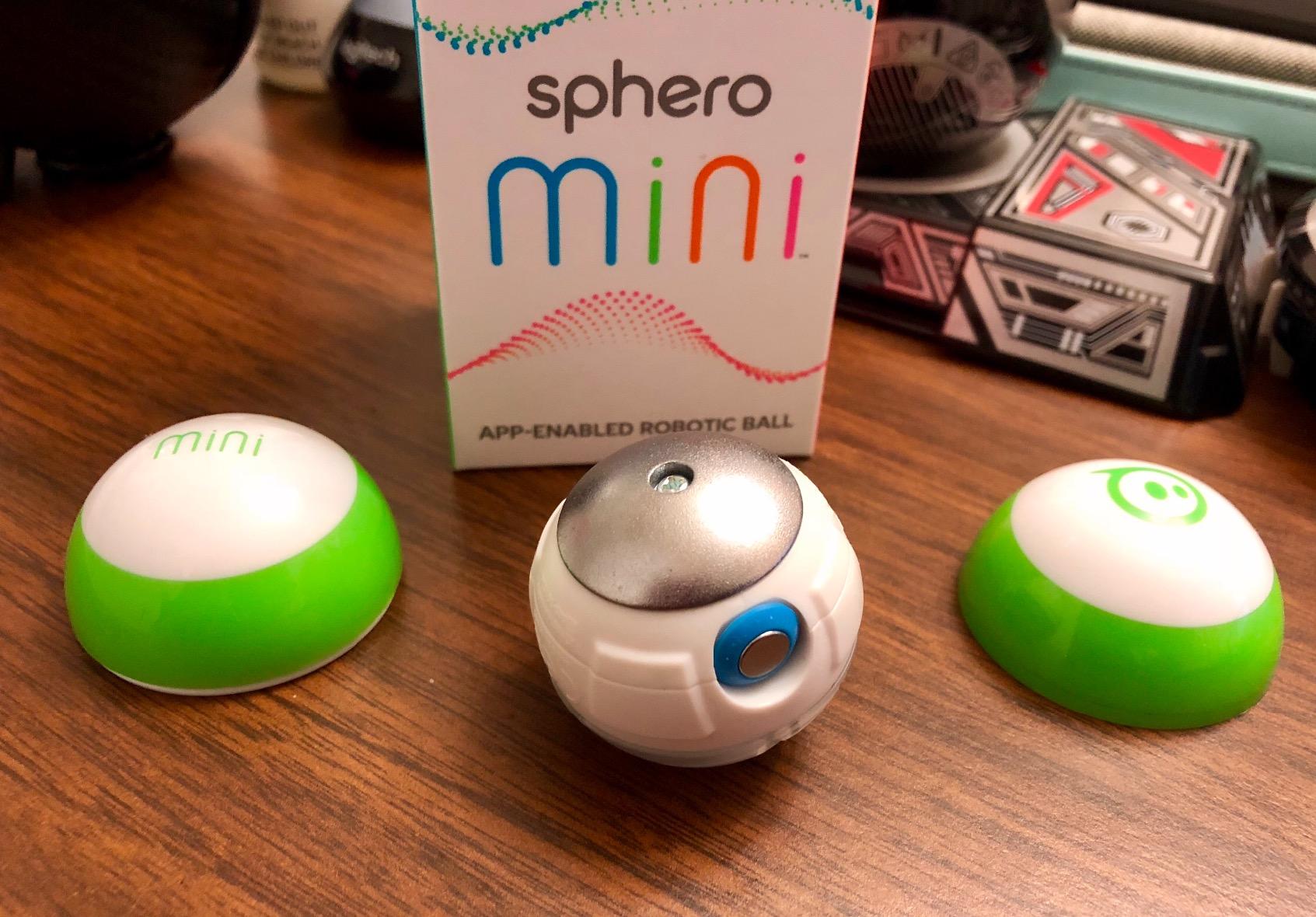
Beyond coding, the Sphero Mini doubles as an arcade-style game controller. Kids use the ball as a motion controller for games on the Sphero Play app. The included 3 traffic cones and 6 bowling pins create instant obstacle-course play without extra purchases.
Connectivity is the most common complaint. The Bluetooth connection drops more than you’d expect, especially after the ball has been idle for a while. On hardwood floors it works beautifully; on thick carpet it loses orientation and rolls unpredictably. Replacement shells are hard to find if the clear plastic gets scratched.
Why Sphero Mini is great for older beginners
Most coding robots on this list cap out at block programming. The Sphero Mini goes further by offering a genuine JavaScript environment that introduces real syntax. For a 10 or 11-year-old who’s already comfortable with Scratch, the Mini is the natural bridge to text-based coding.
Battery life and charging logistics
The Mini charges via micro USB (cable included) in about an hour, then runs for about an hour of active play. The battery isn’t user-replaceable, so after 2-3 years of regular use you’ll notice shorter sessions. For occasional play, the battery lasts much longer.
How to Choose the Right Educational Robot
Choosing the best educational robot for your kid comes down to three questions: age, play style, and budget. Get those right and the rest is easy.
What age should kids start learning robotics?
The sweet spot for screen-free coding toys is age 4-5, when kids can follow multi-step sequences but shouldn’t be on screens for long. The Code & Go Mouse and Sphero Indi both target this range and teach real programming concepts without screen fatigue.
Ages 6-9 is where the most options open up. Wonder Workshop Dash, Botley 2.0, and the Ruko 1088 all work well here, depending on whether your kid wants to build, code, or just play. By age 8, kids can handle the mBot and Codey Rocky’s transition from blocks to Python.
Ages 10+ opens the door to real text-based programming. The Sphero Mini’s JavaScript environment, the Codey Rocky’s Python mode, and the Makeblock mBot’s Arduino C++ environment all provide genuine bridges to professional languages.
Three play personas: Builder, Coder, or Companion
The market splits into three product categories, and matching your kid’s play style to the right category matters more than specs.
Builders want to construct the robot before they play. They love the assembly phase. The Coding Chameleon, Code+Control REX, and the original mBot serve this persona well. Warning: builders can burn out on the construction phase if the play payoff is weak.
Coders want a programmable tool that’s ready to go. They care about the software environment more than the hardware. Wonder Workshop Dash, Makeblock mBot, Sphero Mini, and Codey Rocky serve this persona. These kits emphasize the progression from blocks to text code.
Companion seekers want a robot friend, not a learning tool. The Ruko 1088 and AI companion robots like Miko or Loona target this persona. These robots prioritize personality and interaction over coding depth.
Hidden costs of ownership
The sticker price isn’t the final number. Several robots in this roundup require ongoing costs that catch parents off guard.
Batteries: The mBot, Botley 2.0, Code & Go Mouse, Coding Chameleon, and Code+Control REX all require batteries that aren’t included. Plan on $15-25 for the first battery haul. Robots with rechargeable Li-Ion batteries (Dash, Codey Rocky, Sphero Indi, Ruko 1088) save money long-term.
Tablets and devices: Several robots need a tablet, phone, or computer to function. The mBot and Codey Rocky both need a device with Bluetooth. If you don’t have a compatible device, add $100-300 to the budget for a basic tablet.
Subscriptions: AI companion robots like Miko 3 and Loona typically require monthly subscriptions (around $10-15/month) for full features. None of the robots in our top 10 require subscriptions, which is a major reason we didn’t include them.
Replacement parts: Tiny screws, gears, and battery covers get lost. The mBot and Coding Chameleon both have small parts that frustrate younger kids. Buying a small parts organizer upfront saves headaches later.
Privacy and data safety for connected robots
Connected robots collect data. Even basic Bluetooth robots transmit usage patterns. Robots with cameras and microphones (Miko 3, Loona) raise the most privacy concerns, and we excluded them from this roundup for that reason.
The robots in our top 10 are mostly privacy-friendly. Wonder Workshop Dash requires no account sign-up and collects no usage data. The Sphero Mini processes commands locally. The Ruko 1088 has no camera or always-on microphone. The mBot and Codey Rocky transmit only the code you upload to the robot.
If you choose a robot with a camera or voice features, read the privacy policy carefully. Look for clear data retention rules, opt-out options, and whether voice data is sent to cloud servers. For families with young children, robots without cameras or microphones are the safer default.
Frequently Asked Questions
What are some good educational robots for kids?
Good educational robots for kids include the Makeblock mBot for ages 8-12 (Scratch to Arduino), Wonder Workshop Dash for ages 6-11 (voice-activated, classroom-tested), Botley 2.0 for ages 5-9 (screen-free coding), Code and Go Robot Mouse for ages 4+ (earliest screen-free entry point), Sphero Mini for ages 8+ (JavaScript programming), and Makeblock Codey Rocky for ages 6-12 (Scratch to Python progression).
What is the best coding robot for kids?
The best coding robot for kids depends on age and learning goals. For ages 8-12, the Makeblock mBot offers the strongest progression from Scratch blocks to Arduino C++. For ages 6-11, Wonder Workshop Dash provides voice activation and five age-appropriate apps. For ages 4-7, Botley 2.0 delivers screen-free coding with real programming logic. For ages 10+ ready for text coding, Sphero Mini runs actual JavaScript.
What is the ideal age for children to start learning robotics?
The ideal age to start learning robotics depends on the format. Screen-free coding toys work well starting at age 4 (Code and Go Mouse, Sphero Indi). Visual block programming works well from age 6 (Wonder Workshop Dash, Botley 2.0). Build-and-code kits work well from age 8 (mBot, Codey Rocky, Coding Chameleon). Real text-based coding works well from age 10 (Sphero Mini JavaScript, Codey Rocky Python).
What is a good robotics set for a 10-year-old?
A good robotics set for a 10-year-old is the Makeblock mBot (Scratch to Arduino progression, LEGO compatibility), Makeblock Codey Rocky (Scratch to Python, expressive face), or Sphero Mini (real JavaScript programming in a tiny ball). For 10-year-olds who love building, the Thames and Kosmos Coding Chameleon offers a 133-piece construction project at an affordable price.
Are robotics kits worth it for kids?
Yes, robotics kits are worth it for most kids because they teach computational thinking, problem-solving, and engineering concepts through hands-on play. The educational value depends on the kit. Robots that teach real programming logic (block coding with progression to text coding) deliver stronger STEM outcomes than remote-control toys marketed as STEM. Look for kits that emphasize progression and require kids to debug when things go wrong.
Do robot toys actually teach coding?
Robot toys teach coding when they include a programming interface that requires kids to think about sequence, conditionals, loops, and debugging. The best educational robots (mBot, Dash, Codey Rocky, Sphero Mini) move kids from visual block programming to text-based languages over time. Lower-quality robot toys use only remote controls with no programming component, and these teach motor skills but not coding.
What are some problems with educational robots?
Common problems with educational robots include: batteries not included in many kits, Bluetooth connectivity issues on first pairing, proprietary charging cables that limit replacement, tiny screws and parts that get lost during assembly, screen dependency reintroducing the screen time problem parents want to avoid, subscription fees on AI companion robots, and proprietary parts that are hard to replace when they break.
Our Final Recommendation
After three months of testing, the Makeblock mBot remains our top pick as the best educational robot for kids. It combines a fast first build, a real Scratch-to-Arduino progression path, an expansive add-on ecosystem, and an accessible price point. For most families, this is the robot that will hold attention longest and teach the most.
If your child is younger than 8, start with the Code & Go Robot Mouse or Sphero Indi to build screen-free coding instincts. If they’re 6-11 and you want the safest, most classroom-tested option, Wonder Workshop Dash is hard to beat. If they’re 10+ and ready for real JavaScript, the Sphero Mini delivers genuine text coding in a portable package.
The best educational robots for kids in 2026 all share one quality: they make kids fix something when it breaks. Whether that’s debugging a Scratch program, troubleshooting a Bluetooth connection, or rebuilding a gear that fell off, the struggle is where the learning lives. Choose a robot that matches your kid’s age and play style, plan for the hidden battery and tablet costs, and let them tinker. The educational payoff is real.