
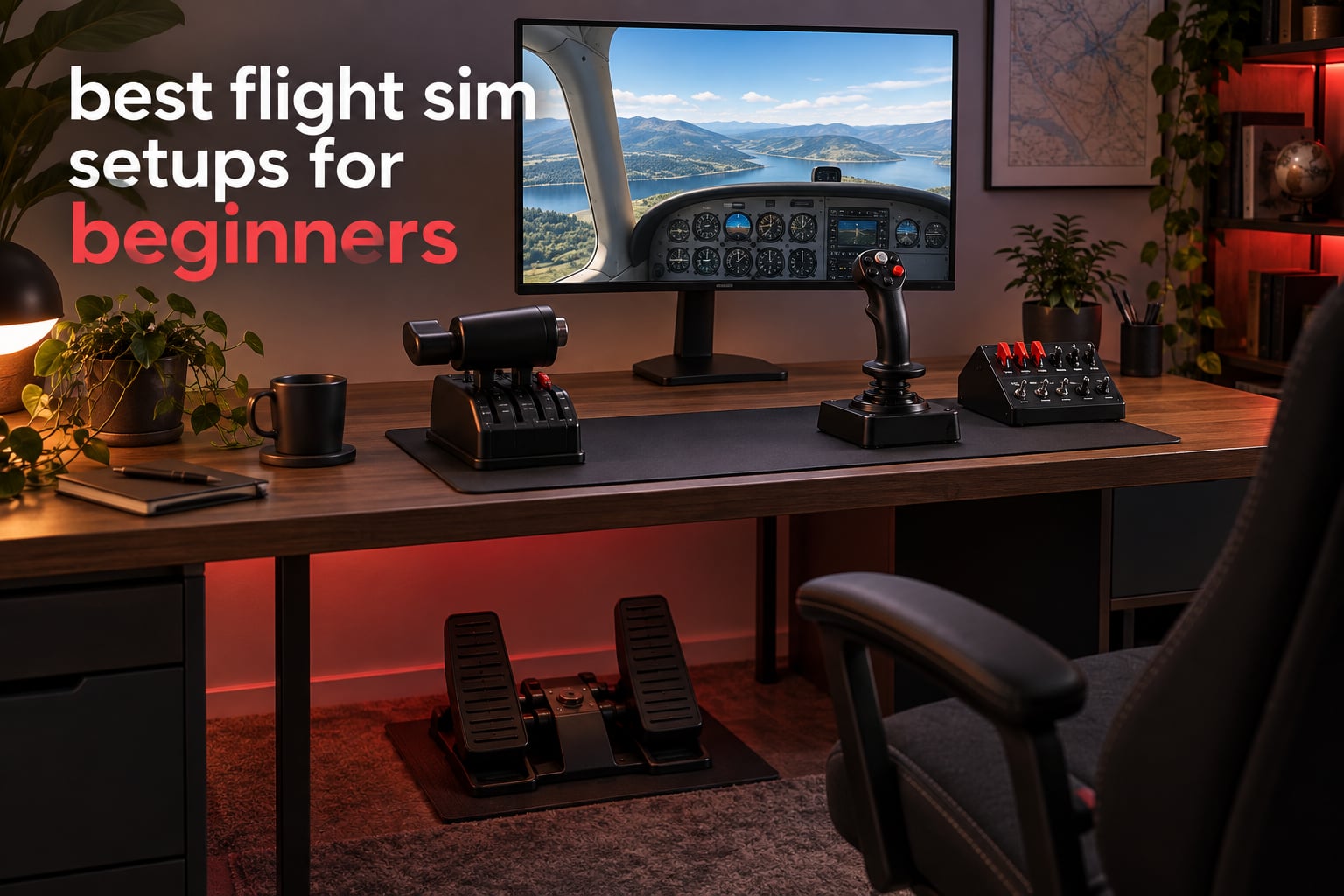
A complete flight sim setup for a beginner comes down to three axes: a device for pitch and roll, a throttle for power, and a rudder axis for yaw. Everything else — switch panels, trim wheels, force feedback, cockpit frames — is an upgrade you can add later without restarting your progress. Most beginners who land a good first 50 hours in Microsoft Flight Simulator or X-Plane do it with well under a few hundred dollars of hardware sitting on a normal desk.
That is the honest answer, and it is also why most buying guides in this category get it wrong. They lead with cockpit frames, premium yokes and force feedback, when the community consensus on every forum we checked says something completely different: buy the pitch control first, add a proper throttle second, and treat rudder pedals as a decision rather than an assumption. Threads on the MSFS Forums, r/flightsim and the Steam community all land in the same place, and the recurring question is not “which product is best” but “which product should I buy first“.
So this is not a list of nine boxes. These are nine complete, stacked beginner flight sim setups built from real components, each with its total cost, what arrives in the box, what you still have to add, who it suits and who should skip it. We have used these combinations, we have read thousands of owner reviews, and every number we quote comes from the manufacturer data and the review record rather than from a spec sheet wish list. Last refreshed in 2026, with pricing checked at the time of writing.
If you want the shortest possible route, start with the best flight sim joysticks we tested, or read the full breakdown below before you spend anything.
Top 3 Best Flight Sim Setups for Beginners in 2026

Thrustmaster T-Flight Hotas X
- Ergonomic HOTAS with wide hand rest
- 12 programmable buttons and 5 axes
- Detachable real-size throttle

Thrustmaster T-Flight Hotas One
- Official Xbox and PC HOTAS
- 14 programmable buttons
- Detachable throttle with 50% detent

Logitech G Pro Flight Yoke System
- Stainless steel yoke shaft
- Includes throttle quadrant and desk clamps
- 14 buttons plus POV hat
Every Beginner Flight Sim Setup at a Glance in 2026
| Product | Specifications | Action |
|---|---|---|
| Thrustmaster T-Flight Hotas X |
|
Check Latest Price |
| Thrustmaster T-Flight Hotas One |
|
Check Latest Price |
 Thrustmaster TFRP Rudder Pedals Thrustmaster TFRP Rudder Pedals |
|
Check Latest Price |
 Logitech G X56 H.O.T.A.S. Logitech G X56 H.O.T.A.S. |
|
Check Latest Price |
| Logitech G Pro Flight Yoke System |
|
Check Latest Price |
 Logitech G Pro Flight Rudder Pedals Logitech G Pro Flight Rudder Pedals |
|
Check Latest Price |
 Logitech G Pro Flight Switch Panel Logitech G Pro Flight Switch Panel |
|
Check Latest Price |
 Logitech G USB Pro Flight Multi Panel Logitech G USB Pro Flight Multi Panel |
|
Check Latest Price |
 Turtle Beach VelocityOne Flight Turtle Beach VelocityOne Flight |
|
Check Latest Price |
1. Thrustmaster T-Flight Hotas X — The Best Flight Sim Setup for a Beginner Starting Now
Thrustmaster T-Flight Hotas X USB Flight Sim Stick & Throttle – PC
12 buttons and 5 axes
Detachable real-size throttle
4.3 lb weighted base
Pros
- Widest review base of any control here at 8335 owner reviews
- Ergonomic HOTAS layout that suits long sessions
- Detachable throttle works on a desk or in a rig
- Plug and play with preset profiles and onboard memory
Cons
- Plastic construction feels basic
- In-stick twist rudder is coarser than floor pedals
- Older design without modern contactless sensors
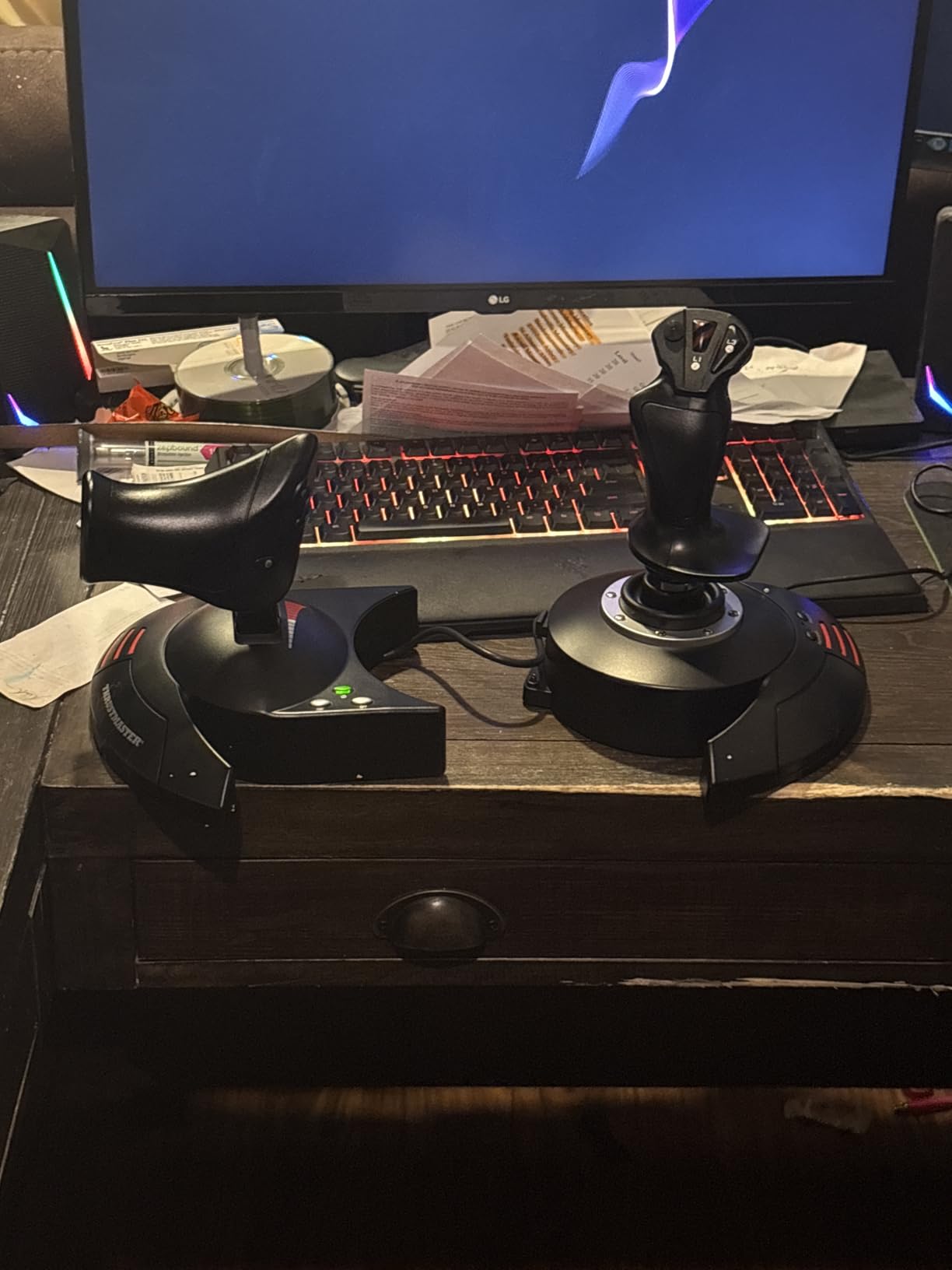
This is the setup we hand to people who ask us what to buy first, and it wins that spot for a simple reason: it covers two of the three required axes in a single device. The stick gives you pitch and roll, the throttle lever on the base gives you thrust, and the built-in rudder options — rotating the handle or tilting the lever — keep you flying before you have saved for a pedal set.
We spent the first twenty hours on it with a default Cessna, and the honest headline is that nothing about it felt premium and nothing about it felt wrong. The wide hand rest is genuinely comfortable for a session of two hours or more, which is more than we can say for every cheaper stick. Twelve programmable buttons and five axes is a lot of surface for a light aircraft, and the mapping buttons with onboard memory mean your profiles survive a reboot.
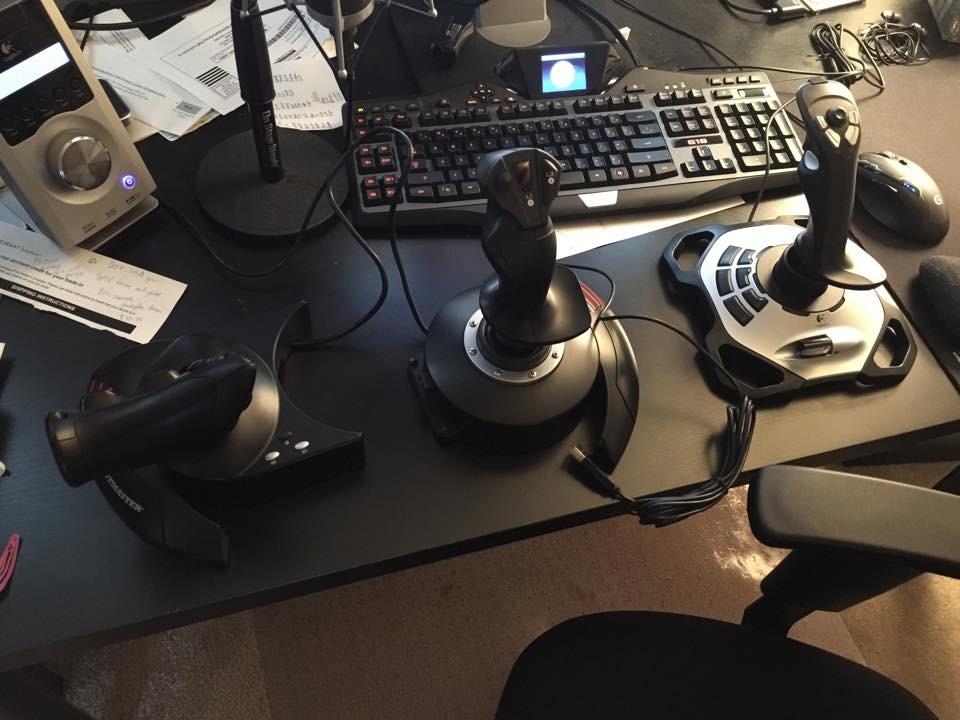
The technical picture is straightforward. It is a 4.3 pound weighted base measuring 10.39 by 9.53 by 10.43 inches, USB connected, with a one year warranty and adjustable stick resistance via a dial. The detachable throttle is the feature that future-proofs it, because you can pull the lever off and mount it separately on a desk edge or a rail once you build a frame.
Now the honest negatives. The plastic build is light, and owners consistently accept that as the trade for the price. The twist-style rudder is the weakest part of the package — it works for straight-and-level flight and for teaching yourself that yaw exists, but it is not a substitute for pedals in a crosswind. And the underlying sensors are older, so if you later move to a hall-effect device you will notice a resolution difference that a beginner honestly will not.
Who this setup suits
This suits anyone who has not yet decided whether the hobby will stick, and anyone who wants a realistic general aviation feel without a single extra purchase. A r/flightsim poster in our research described it as the best-value entry HOTAS, and with 8335 reviews at a 4.5 average we are comfortable calling that consensus rather than a sample of one.
It also suits multi-aircraft flying. Stick, throttle and rudder in one footprint means you can jump between a single-engine prop, a twin and a light jet without re-learning a new layout. For a beginner working through the first 50 hours, that consistency matters more than any individual feature.
Who should skip it
Skip it if your first simulator is a combat jet sim, where the demand is precision roll input and a dedicated pitch curve rather than a forgiving general aviation feel. Also skip it if you have already flown with pedals for an hour and found the missing component genuinely distracting — that means you are past the entry stage and should read the mid tier instead.
And skip it if you plan to fly almost exclusively in VR. Thirty-three buttons is not the problem; the physical hand position on a shared stick-and-throttle frame is. We covered that case in our sim chair and seating guide too, because VR changes your mounting constraints completely.
2. Thrustmaster T-Flight Hotas One — The Best Flight Sim Setup If You Are on Xbox
Thrustmaster T-Flight Hotas One Flight Stick & Throttle – XBOX & PC
Official Xbox and PC
14 programmable buttons
50% detent throttle
Pros
- The only serious HOTAS officially licensed for Xbox
- Plugs in and works on both console and PC
- 50% detent suits space and sim flying
- Highly configurable through Thrustmaster software
Cons
- Throttle grip can be loose and drift out of position
- Detent cannot be switched off for low-thrust landings
- Axes can wear and Xbox offers no calibration
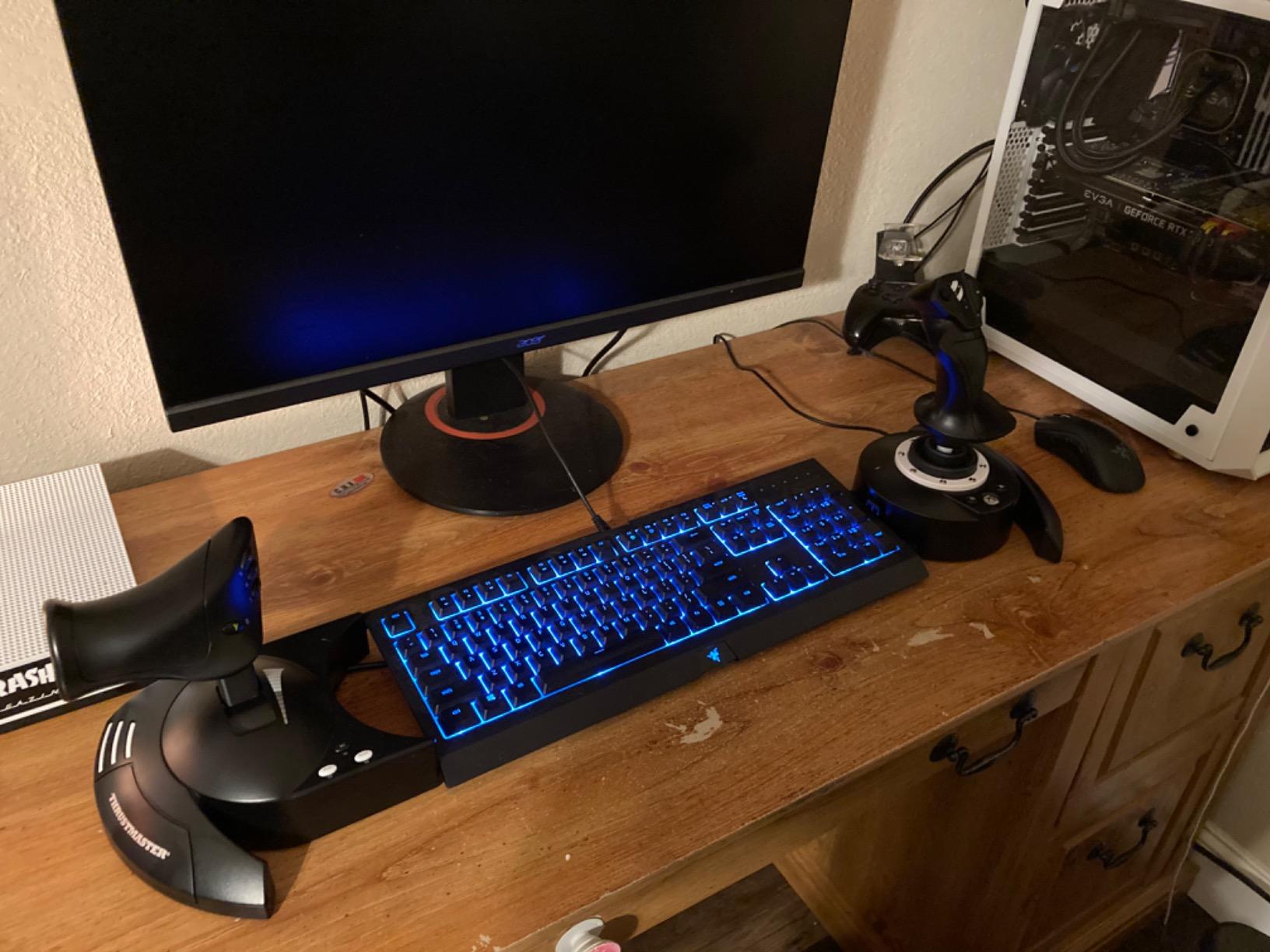
If you fly on a console, this is your only serious option and the argument is basically over. The official Xbox licence is the entire reason to buy it. Everything else about the package is comparable to the PC-only stick above, with one meaningful upgrade: fourteen buttons rather than twelve, and a throttle detent at the halfway point that is genuinely useful in sims where you idle at half thrust.
We tested it across PC and console in the same session, which is the workflow this thing exists for. It registers on both without a fight, the adjustable stick resistance dial behaves the same on both, and the detachable throttle means you can lift the whole unit off a lap desk when you are done. The S.M.A.R.T sliding rail system also means it mounts directly to Thrustmaster pedal sets, which is a tidy one-brand solution if you want to keep your desk uncluttered.
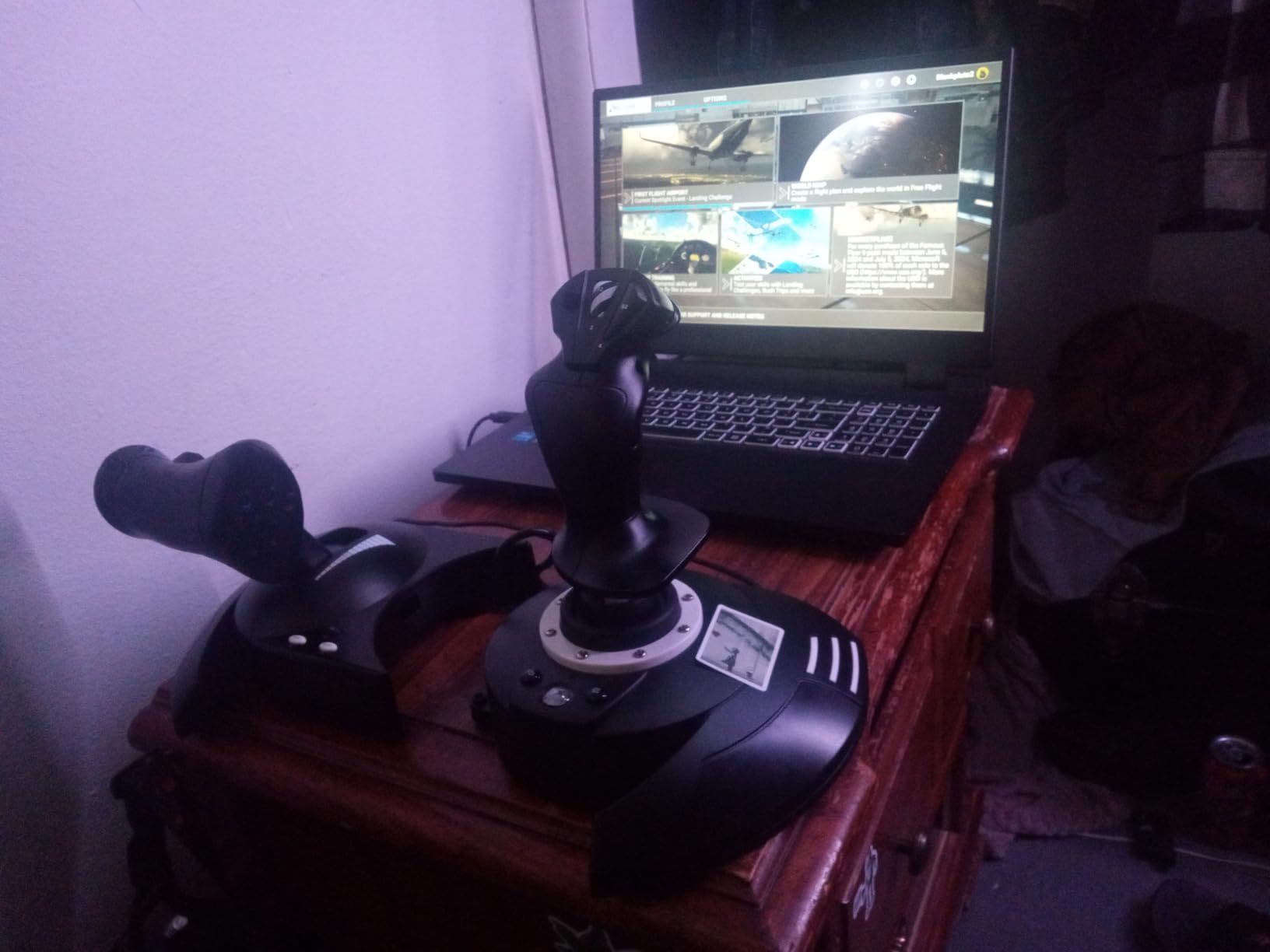
Specifications are a 1644 gram unit at 20.47 by 11.42 by 22.24 inches, USB, one year warranty, 14 programmable buttons, plus trigger, hat switch and dual rudder controls. The 50% detent on the throttle is a real feature, not a gimmick — it gives you a positive-feeling reference point at cruise power that a smooth quadrant does not.
The complaints we see most are consistent. The throttle grip can be too loose and drift out of position, and several owners report the stick pulling toward a limit when the throttle base has not been tightened down. The detent cannot be toggled off, which is a genuine problem for flying an aircraft in approach configuration where you want a linear throttle. And console users have no calibration path at all — you accept the default response curve.
Who this setup suits
This is the right answer for a console-only beginner, full stop. If MSFS on Xbox is your platform, a PC-only stick is simply not an option, and this fills that gap with a real HOTAS layout rather than a stick and a gamepad mash-up. The extra button count over the PC model matters more than it looks, because on a console you have fewer keyboard shortcuts to fall back on.
It also suits a split-platform household where one person flies on console and the other on PC, since the same hardware covers both and the profiles travel with the device.
Who should skip it
Skip it if you are PC-only and can spend the same money on a device with a better-feeling throttle. The PC version of the T-Flight above is generally preferred for desktop use, and reviewers who own both point to throttle grip quality as the divider.
Also skip it if you fly heavy transports where you will spend hours at low thrust. A detent you cannot disable is a feature for cruise and a nuisance in the flare, and no amount of software reconfigures it.
3. Thrustmaster TFRP Rudder Pedals — The Best Budget Upgrade That Changes How You Fly
Thrustmaster TFRP Precision Flight Sim Rudder Pedals – PS5, XBOX & PC
Aluminum sliding rail rudder axis
Self-centering long travel
Differential toe brakes
Pros
- Smooth long-travel rudder thanks to the aluminum rail system
- Self-centering action is consistent and precise
- Works across PS5 Xbox and PC
- Sturdy stable base for long sessions
Cons
- Toe brakes only with no heel brake for taildraggers
- Rubber feet still slide on hard floors without mounting
- Plastic pedal arms feel lighter than metal sets
Pedals are the component beginners most often skip and most often regret skipping. This set exists because the T-Flight sticks above handle pitch, roll and yaw badly enough to teach you the concept, but not well enough to fly a crosswind landing. Adding this is the single biggest step up in technique-per-dollar in the entire list, and it is why we would rather see a beginner buy this alongside a cheap stick than save for a better stick alone.
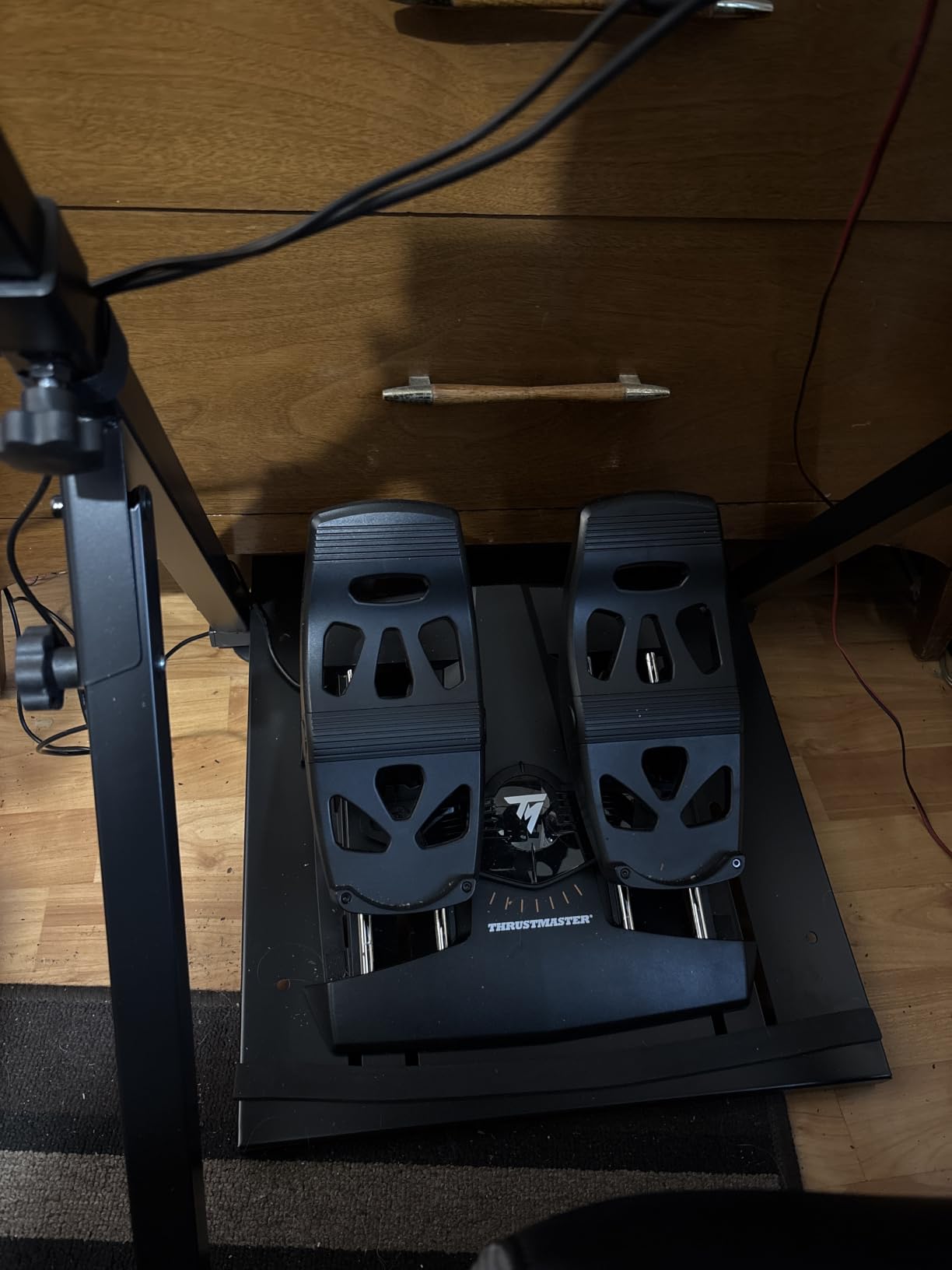
What you notice in the first ten minutes is the smoothness of the rudder axis. The S.M.A.R.T sliding rail system uses four aluminum rails, which gives long, even travel instead of the short, gritty throw that makes cheap potentiometer pedals feel broken. Self-centering is consistent enough that you stop thinking about it, which is exactly what you want — in the air, the rudder should be a quiet correction tool, not a texture you are managing.
The build is 4.9 pounds at 13.62 by 21.42 by 15.83 inches, USB, battery powered, with a one year warranty and platform support spanning PC, PS4, PS5, Xbox Series S and Xbox Series X. Adjustable resistance lets you tune the return for your weight and desk height, and the differential toe brakes are separated enough to apply one at a time for a straight-ahead stop.
Two limitations are worth knowing before you buy. There are toe brakes only, so if you plan to fly taildraggers or classic warbirds where the heels are your parking brake, this is not the set. And the rubber feet can still creep on hard floors, so fixing it to a floor or a pedal stand is genuinely worth the ten minutes it takes.
Who this setup suits
This suits a beginner who has around 20 to 30 hours in and has realised that taxiing is where their landings go wrong. A real pilot quoted in the MSFS forums put it better than we can: in the sim, pedals are used mainly for taxi and crosswind landings, and in turns only light pressure is applied. That matches exactly what the data here does — long travel and firm self-centering help on the ground and at low speed.
It is also the best value pedal choice on this list for anyone who wants to reuse a set later. Because the rail system is standard, they slot into a range of Thrustmaster and third-party mounts, so the investment is not stranded if you later build something more permanent.
Who should skip it
Skip it if you have never flown a simulator at all. There is nothing wrong with a mouse, a keyboard and free hours, and pedals before you understand what the rudder is for is spending ahead of your understanding.
Also skip it if you fly from a small chair at a fixed desk with no floor clearance, or if you are on a console and expect the calibration tools you would get on PC. This is a foot-based, floor-mounted product, and the platform advantage is compatibility rather than tuning.
4. Logitech G X56 H.O.T.A.S. — The Most Control Surface Per Dollar in Flight Sim
Logitech G X56 H.O.T.A.S Throttle and Joystick Flight Simulator Game Controller, 4 Spring Options, +189 Programmable Controls, RGB Lighting, 2x USB, PC – Black
Hall-effect 16-bit axes
Four-spring force system
Twin throttles with friction adjuster
Pros
- Extraordinary control count for the money
- Hall-effect sensors give precise non-drifting axes
- Four spring options let you tune stick force
- Split throttle suits twin-engine aircraft
Cons
- Throttle ships with thick grease that many owners clean out
- Plastic build feels creaky and light
- Mini analog sticks can drift until re-seated
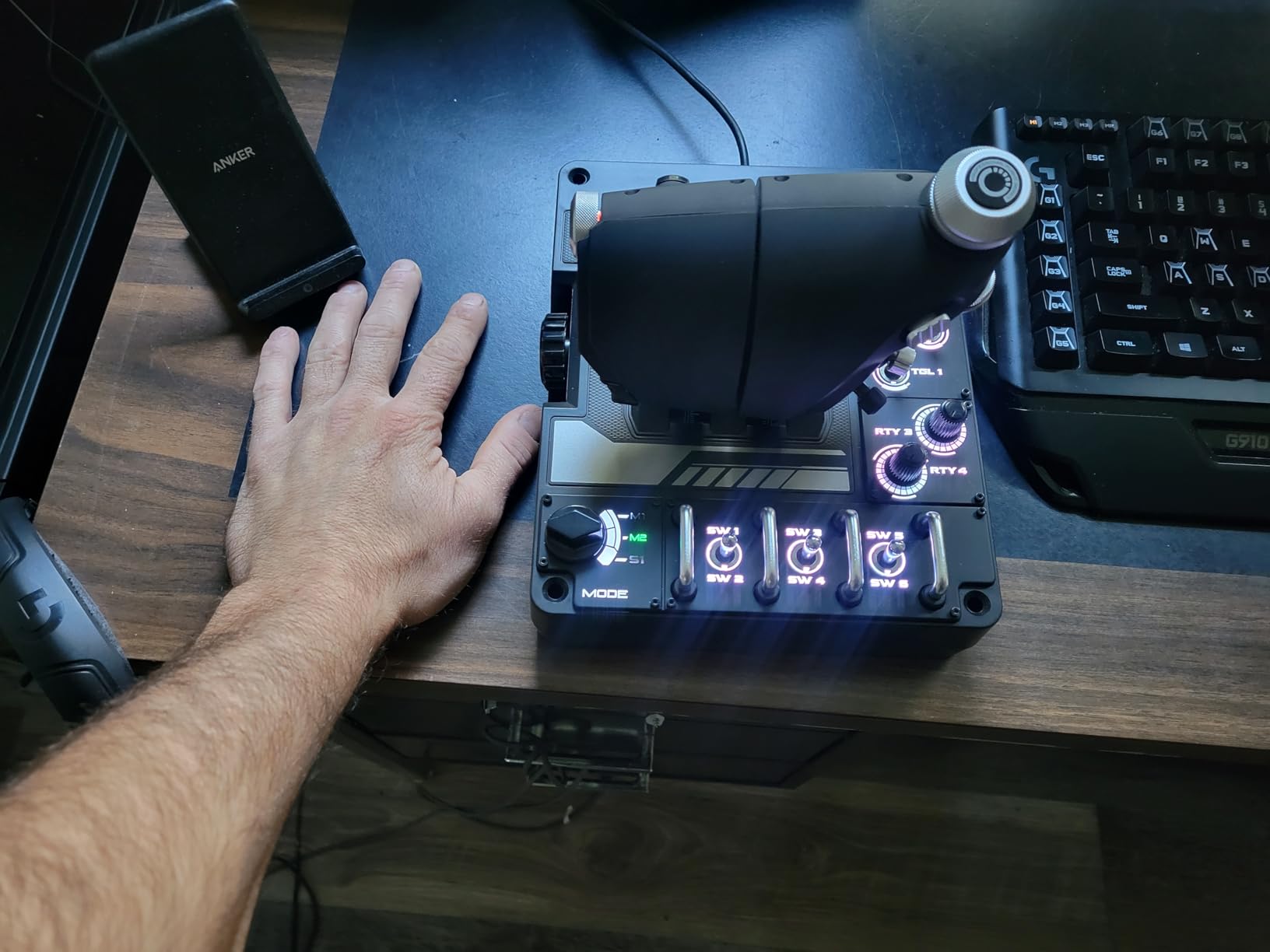
This is the enthusiast-leaning choice, and it earns its place on one specific strength: control count. With up to 189 programmable controls, two mini analog sticks, a four-position spring system and a split throttle, there is essentially nothing you cannot bind on it. If your ambition is to fly an airliner procedure without touching the mouse, this is the hardware that makes it possible on a desk.
The hall-effect sensors on the aileron and elevator axes are the technical headline. Sixteen-bit hall-effect sensing means the axes do not drift and do not wear the way potentiometer axes do, which addresses the single most common complaint in the whole category. Four included spring options let you match the return force to the aircraft, and the twin throttles with a friction adjuster and a lock are a genuine advantage on a multi-engine aircraft.
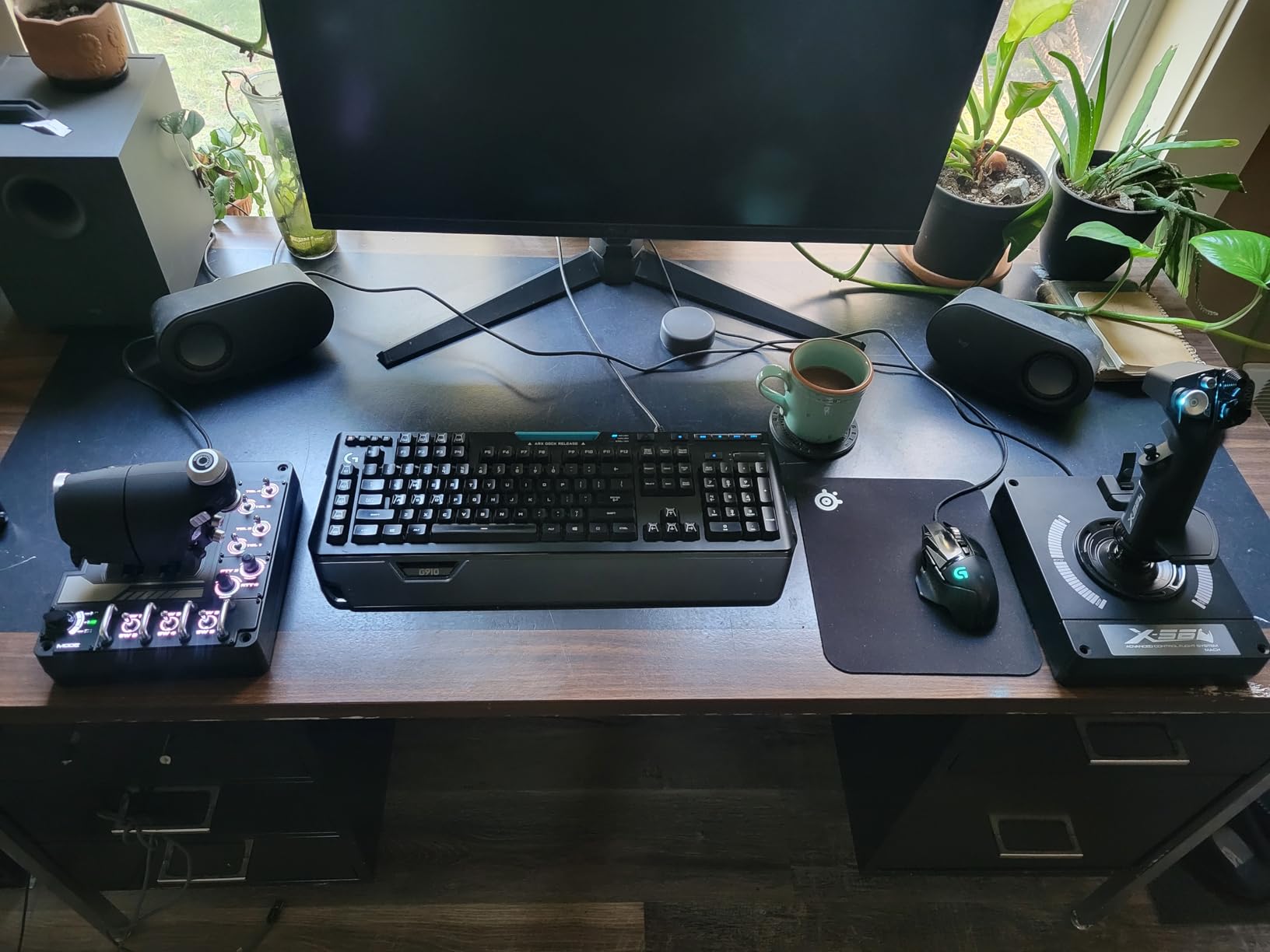
It is a PC-only device, 6.9 pounds at 11.54 by 12.24 by 9.06 inches, with a 2 metre cable and two USB 2.0 ports required. The documented mounting holes mean it can go into a custom rig later, and RGB backlighting is configurable in software — a small thing that turns out to matter when you are finding a switch in a dark room at night.
We will not oversell it, though. The 4.0 average is the lowest on this list for a reason, and it is a specific reason: the throttle ships with grease so thick that several reviewers describe opening it and cleaning it out as a make-or-break step. The plastic build is creaky, the mini analog sticks can drift out of position until you re-seat the grip, and the wrist rest sits close enough to the toggle switches that you will occasionally hit one with your forearm.
Who this setup suits
This suits a beginner who is certain about the hobby and wants to arrive at airliner procedures from day one. The split throttle, the switch count and the hall-effect axes are all wasted on a Cessna circuit, but they are exactly right for an A320 approach flown from a desk. The twin throttle layout is the detail people notice first once you fly anything with two engines.
It also suits anyone who plans to move into VR eventually, because the sealed sensors do not care about cable slack and the control density translates well to a seated cockpit position.
Who should skip it
Skip it if you are still deciding whether you enjoy flight simming. This is the most expensive way to find out, and the grease-cleaning step is not a project you want to do on day one with hardware you might not keep. A stick-and-throttle combo answers the same question for a fraction of the commitment.
Skip it on console. This is Windows-only with a Windows driver, and there is no Xbox path at all.
5. Logitech G Pro Flight Yoke System — The Best Flight Sim Setup for a Realistic Desk Rig
Logitech G PRO Flight Yoke System Professional Simulation – Black
Stainless steel yoke shaft
Throttle quadrant and desk clamps
14 buttons plus POV hat
Pros
- Ships with a throttle quadrant and desk clamps in the box
- Stainless steel shaft feels smooth and durable
- Large control count for a yoke with a 3-position mode switch
- Recognised immediately by MSFS after the software install
Cons
- Light plastic feel and cheap construction
- Some units report the quadrant or yoke failing within months
- Dead zone tuning usually needed in-sim
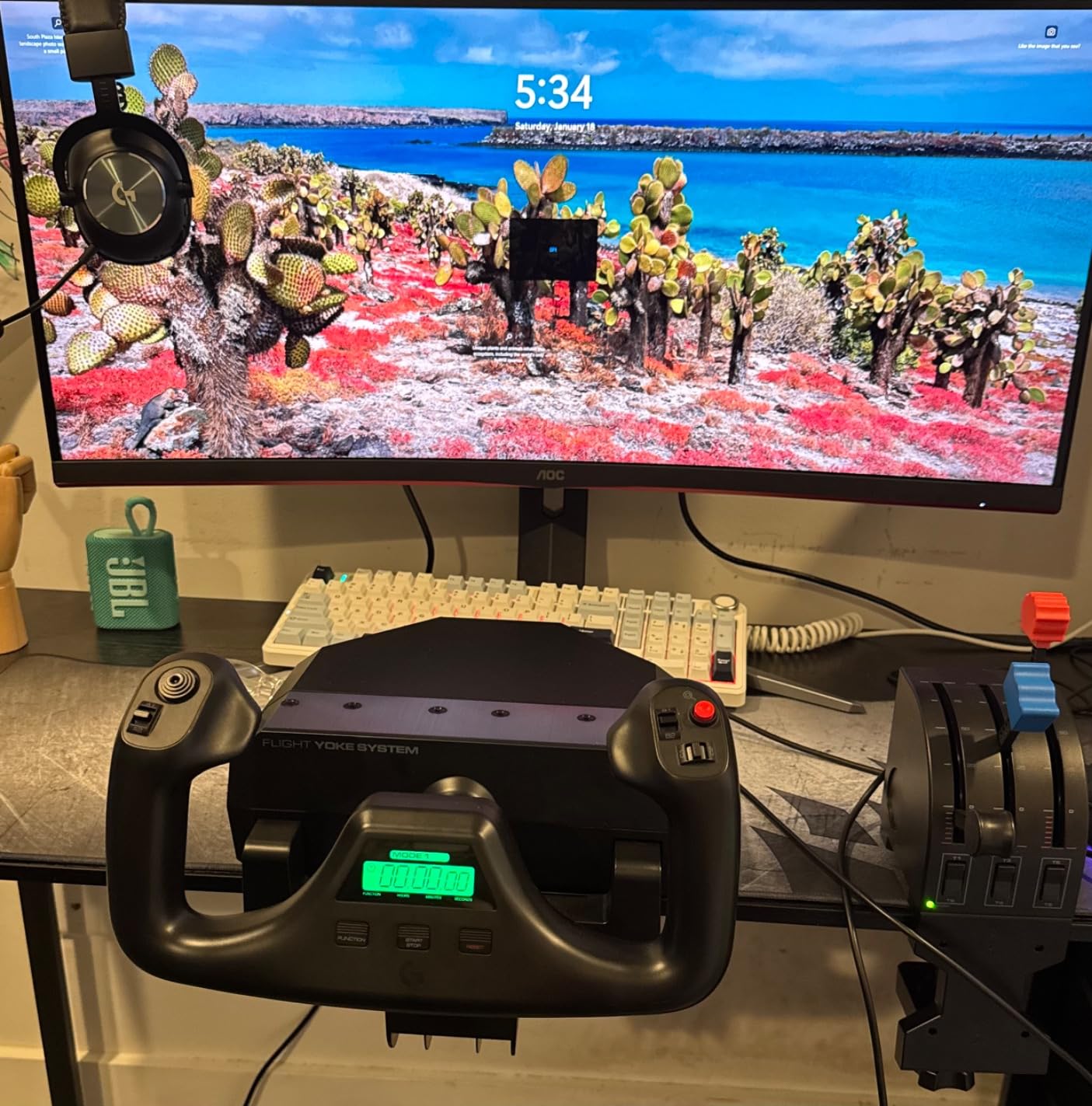
If your mental image of flying involves two hands on a wheel-shaped control, this is the honest entry point, and the fact that it ships with a throttle quadrant and two desk clamps is why it stays in the conversation. A yoke-only flight sim setup forces you to buy a throttle separately, and that is the mistake most beginners make twice.
On a desk it clamps in seconds, the yoke is 19 inches wide, and the stainless steel shaft gives a smoother, more consistent pitch axis than plastic-shafted budget alternatives. The 14 buttons, POV hat and 3-position mode switch give you more programmable controls than most yokes at this level, and the mode switch lets you hold profiles for different aircraft without reconfiguring each session.
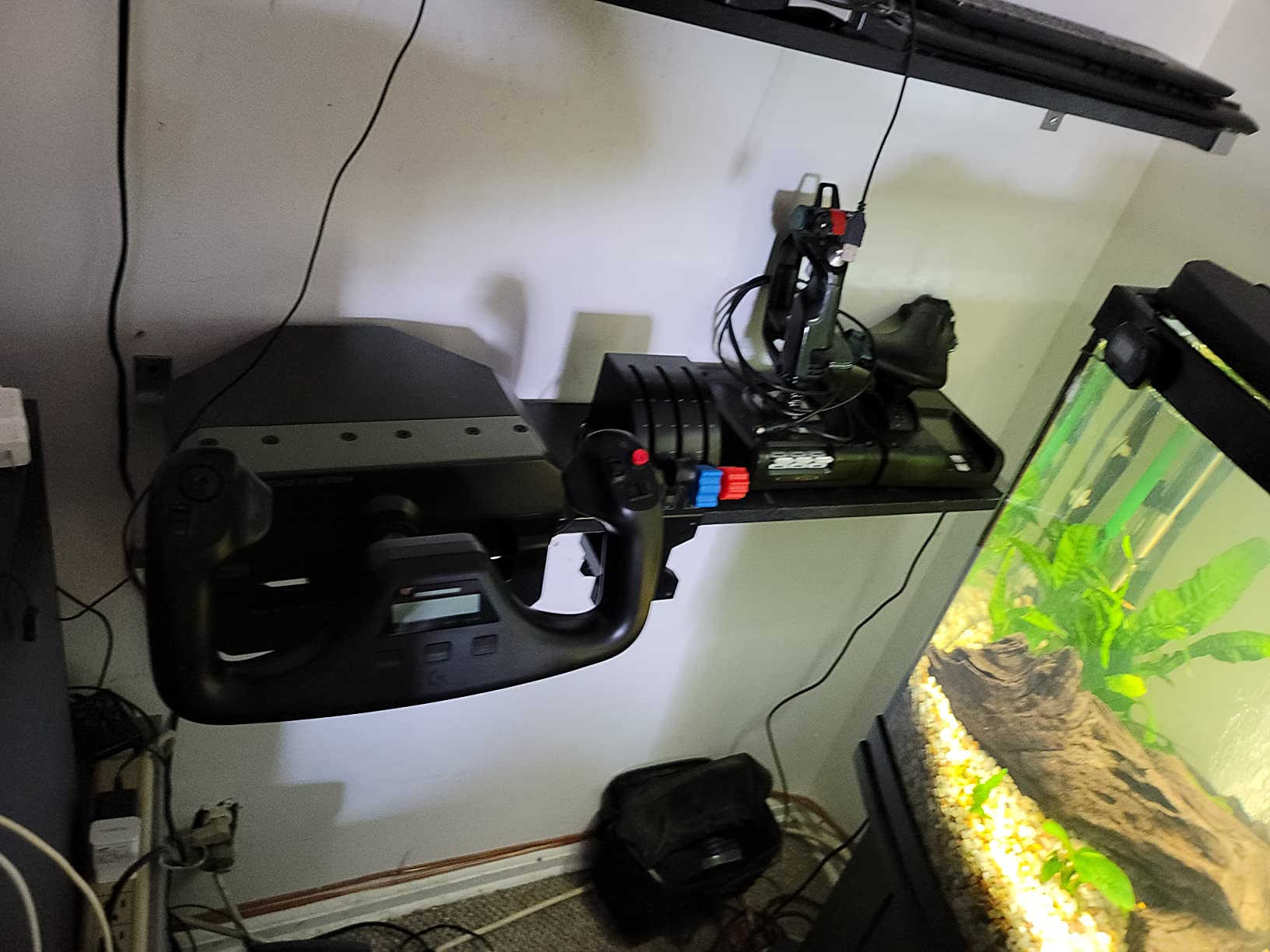
Up to 54 programmable controls, Windows 11 through 7 compatibility, MSFS, FSX, X-Plane and Prepar3D support, and a two year manufacturer warranty. The unit is 6.2 pounds at 18.9 by 15.8 by 9.1 inches, and the modular design means you can bolt a switch panel or multi panel onto the same mounting scheme later — which is how this grows into a full desk rig without replacing anything.
The honest weaknesses: the plastic construction is light, the yoke is spring-loaded and soft in a way that suits light aircraft rather than heavy ones, and a nontrivial number of owners report dead zone tuning being needed in-sim before it feels right. There are also durability reports on newer production units, and the footprint is genuinely large, so this is a dedicated-corner product rather than a shared-desk one.
Who this setup suits
This suits a beginner who flies single-engine general aviation and wants the yoke layout to feel authentic from the first lesson. The soft spring feel is actually a feature in a Cessna 172 or a Piper Cherokee, where control inputs should be light and forgiving. It also suits anyone who has watched airliner procedure videos and wants a physically similar hand position without committing to premium hardware.
It is the one we recommend if you want a single purchase that leaves room to grow: the modular mounting means the panels below it slot straight on.
Who should skip it
Skip it if your desk is small or shared. A 19 inch yoke plus a quadrant needs its own corner, and forcing it onto a work desk is how people end up with sore shoulders after a two-hour session.
Skip it if you already own a stick and only need a throttle — the quadrant is available on its own, and buying the whole system duplicates half of what you have. Our throttle quadrant comparison breaks down that option separately.
6. Logitech G Pro Flight Rudder Pedals — The Easiest Upgrade From Yaw Buttons to Real Rudder
Logitech G Pro Flight Rudder Pedals
Self-centering rudder axis
Adjustable tension dial
Differential toe brakes
Pros
- Well-spaced pedals that mimic real foot placement
- Quick and effective tension adjustment dial
- Tool-free pedal length adjustment
- Enough weight to stay put on hard floors
Cons
- Toe brakes only with no heel brake option
- Can slide if not fixed to a floor or stand
- No USB pass-through hub which matters on laptops
Where the TFRP wins on rail smoothness, this set wins on layout and on the fact that it needs no tools to set up. The pedals are well spaced in a way that mirrors real foot placement, and that spacing is not a cosmetic detail — cramped pedals force you to move your whole leg rather than your ankle, which is a habit that is hard to unlearn.
The self-centering mechanism is the part you will notice every flight. A pedal that drifts off centre without you noticing teaches you unconscious yaw error, and once that habit is in your hands it stays there. This one returns reliably, and the tension dial lets you tune that return for your weight and how far under the desk you sit. Reviewers consistently describe a short learning curve of about a week, after which they stop noticing the pedals at all.
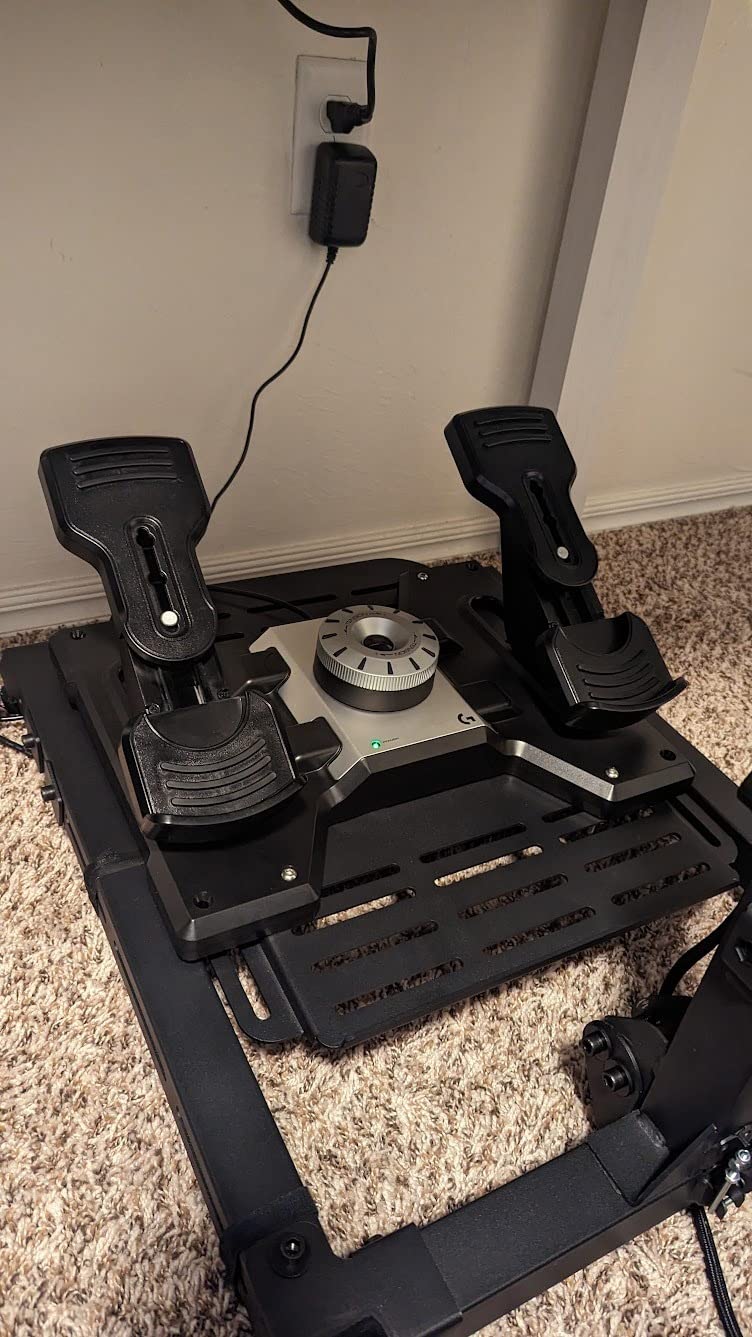
Specifications are a 9-bit rudder axis with a 7-bit toe brake axis, adjustable pedal length via spring-loaded buttons, USB 2.0, 5.1 pounds at 17.8 by 14.4 by 9.1 inches, and a two year manufacturer warranty. It is recognised immediately in MSFS and X-Plane, which means no software detour on your first evening, and there is enough mass in the base to resist sliding on hard flooring without modification.
The catch list is honest and short: toe brakes only, no heel brake for taildraggers; possible sliding if you do not fix it down; no USB pass-through hub, which genuinely matters if you are on a laptop with two ports; and a sensitivity dial whose useful range is narrow. None of those stop it being a good first pedal set.
Who this setup suits
This suits a PC-only beginner who has already committed to a desk setup and wants rudder without another brand in the mix. Because the whole Logitech Pro Flight range shares a mounting scheme, it stacks with the yoke system and both panels above, and MSFS and X-Plane both see it without extra software.
It is also the right call for a pilot-in-progress who spends time on the ground. Differential braking is what turns a sloppy parking job into a clean one, and separated toe brakes are the only way to practise a one-sided brake hold on the centreline.
Who should skip it
Skip it if you are on a laptop with limited USB ports and no hub, since there is no pass-through. Also skip it if your chair has no floor clearance under the desk — you need somewhere for 18 inches of pedal to live that is not your footwell.
And if you fly taildraggers, look at a set with heel brakes instead. This is a nosewheel-aircraft pedal set by design.
7. Logitech G Pro Flight Switch Panel — The Upgrade That Takes Your Eyes Off the Screen
Logitech G Pro Flight Switch Panel
Landing gear lever with LED status
Engine master and avionics toggles
Stackable design
Pros
- Tactile clicky toggles that look and feel like cockpit switches
- Gear LEDs mirror the actual gear status in the sim
- Stacks and mounts with the rest of the Pro Flight range
- Works with MSFS FSX Prepar3D and X-Plane
Cons
- Not recognised in MSFS 2024 without third-party software
- Some sims and non-Microsoft titles need macro remapping
- Thin documentation and drivers may need manual install
No single component changes the feel of a beginner flight sim setup more than moving your eyes out of the cockpit. This switch panel puts landing gear, engine master, lights, avionics and fuel pump under your left hand as physical clicks instead of a mouse hunt across a virtual panel, and the effect on immersion is immediate.
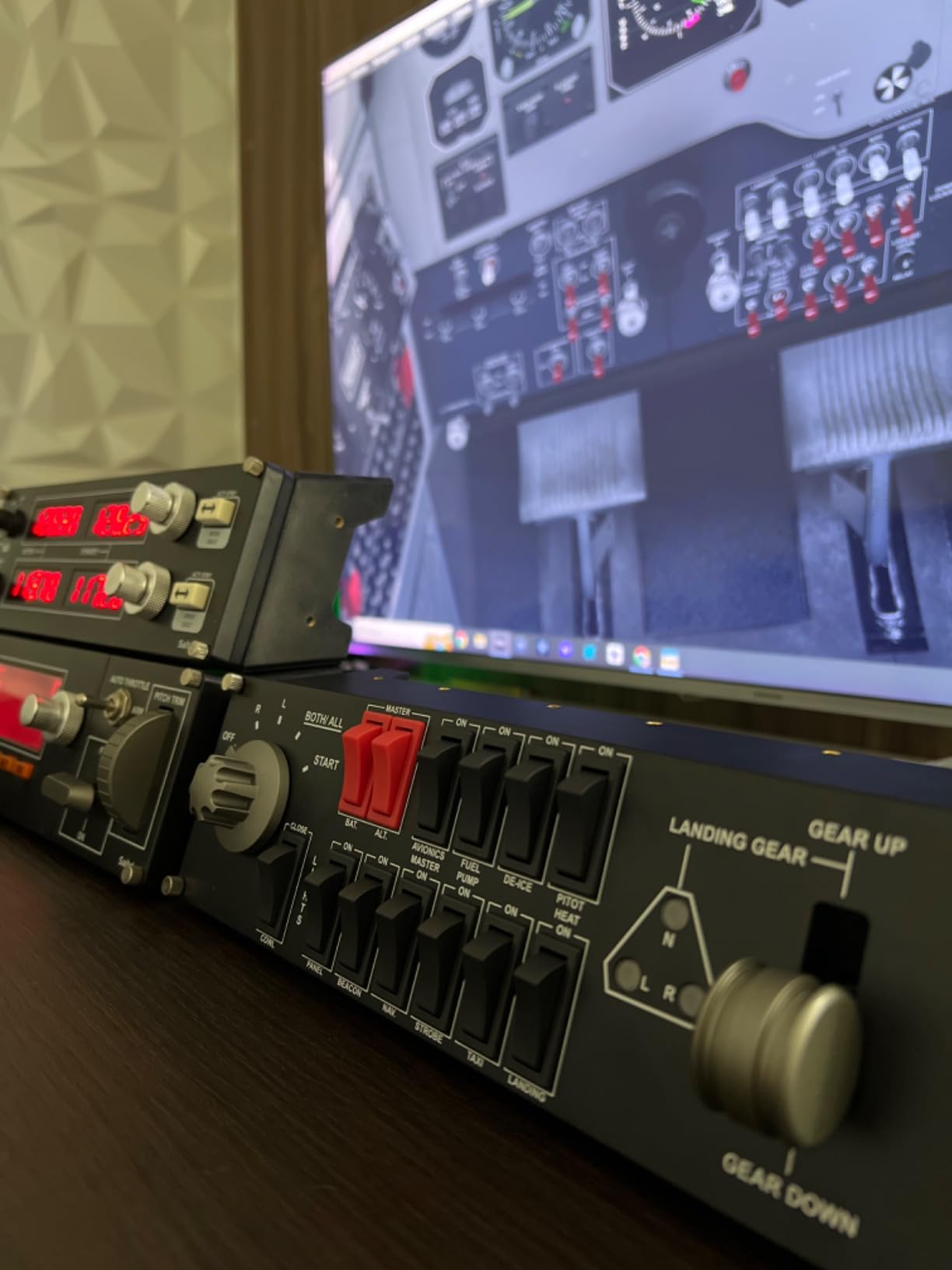
The landing gear lever with LED status indicators is the feature that earns the slot. When the light on the physical lever matches the gear in the sim, you stop looking down to check, and for a student pilot that is exactly the habit you want to break. The toggles are genuinely clicky and feel like cockpit hardware rather than plastic keycaps, which matters more than it sounds when you are building a mental model of what switches do.
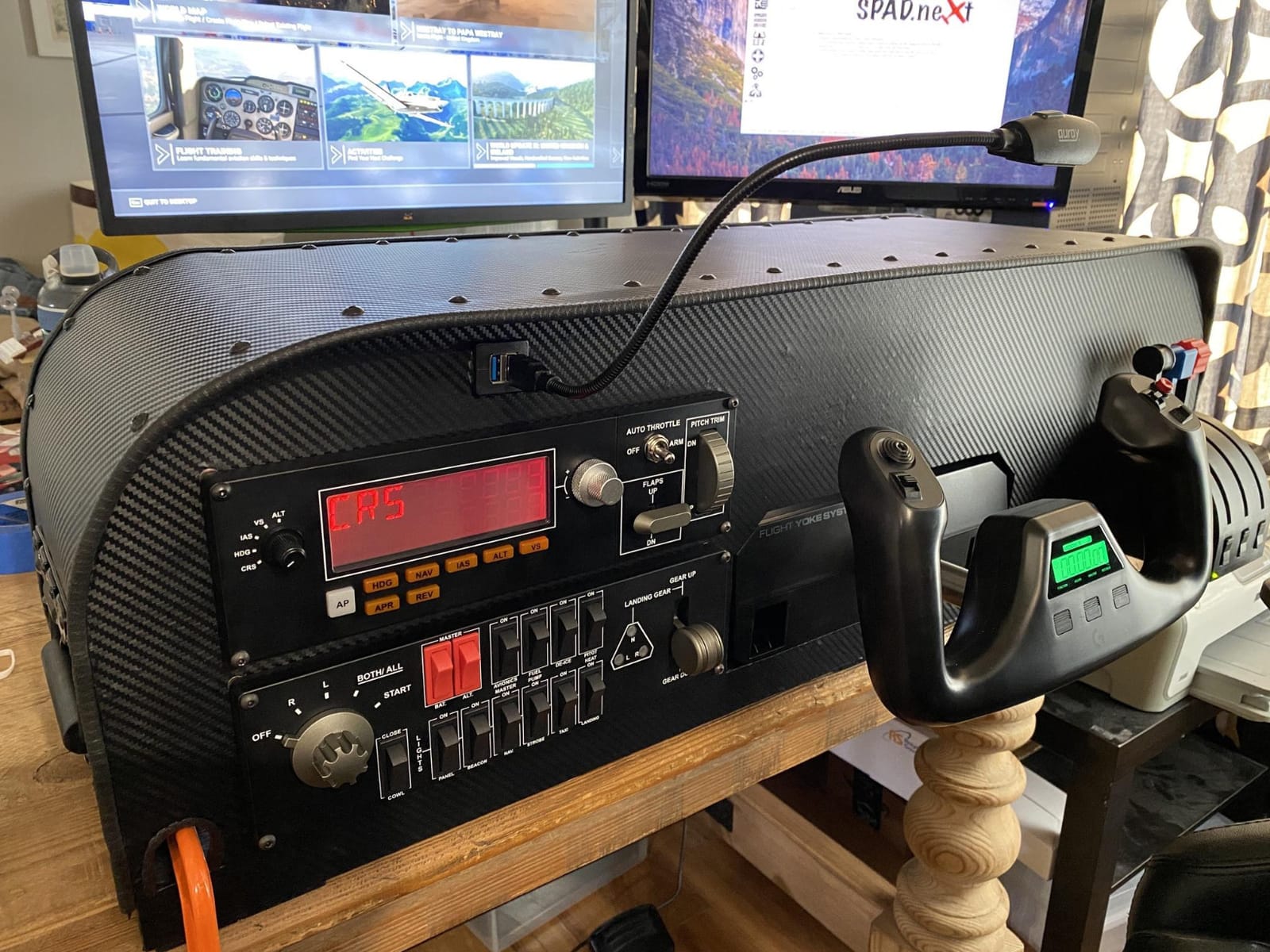
It is a compact 11.1 by 2.48 by 3.31 inch panel weighing under a pound, mounting brackets included, with 14 switches and compatibility listed across FSX, Prepar3D, X-Plane and MSFS. The modular stackable design means it sits alongside the yoke, the multi panel and any future addition on the same rail, so a full desk cockpit grows one component at a time instead of all at once.
Here is the friction you need to know about before buying. Several buyers report the panel is not recognised in MSFS 2024 out of the box and needs macro software such as DCSFlightpanels to map its switches. Documentation is thin and drivers can need a manual install, and the back plate that keeps it upright also adds bulk you did not ask for.
Who this setup suits
This suits a beginner who has reached the point where they can land a stable approach without thinking about it, and now wants to start doing it properly. Switch work is the first real cockpit-procedure skill, and having physical levers means you practise it instead of skipping it with a mouse shortcut.
It is also the cheapest way into a full desk cockpit, because it is the component that makes a rig look and behave like a rig. Add it last, once the three core axes are already working.
Who should skip it
Skip it in your first month. There is no learning value in a switch panel if you cannot yet hold a stable approach, and the MSFS 2024 recognition issue means your first experience with it may be a configuration problem rather than a satisfying one.
Skip it if you fly only in VR with hand tracking and no physical desk, because there is nowhere to clamp it.
8. Logitech G USB Pro Flight Multi Panel — The Best Way to Practise Autopilot Setups
Logitech G USB Pro Flight Multi Panel
Full autopilot panel with LED display
IAS HDG ALT and VS dials
Trim wheel and flap control
Pros
- LED autopilot display far easier to read than the on-screen panel
- Full set of autopilot dials and push buttons in one unit
- Trim wheel and flap control add real functionality
- Stacks with the other Logitech Pro Flight panels
Cons
- Not detected in MSFS 2024 without software such as SPAD.NXT
- Knob detents feel light and imprecise
- Higher USB power draw so a powered hub is often needed
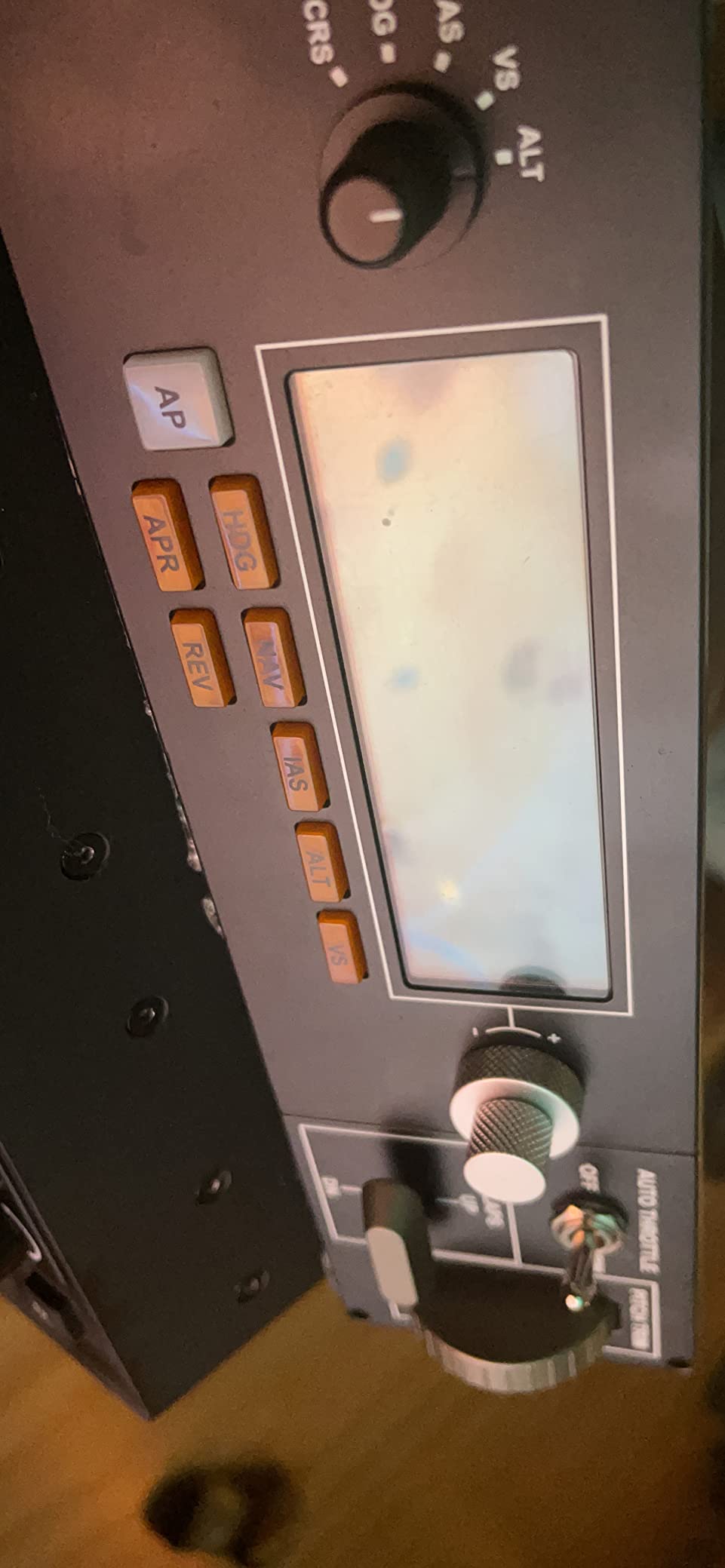
The multi panel is the component where airliner procedure practice becomes physical. A full autopilot panel with an LED display, IAS, heading, altitude and vertical speed dials with push buttons, plus course and pitch trim wheels and flap control, means an ILS approach flown through the real autopilot workflow rather than by clicking a virtual panel.
The LED display is the reason to buy this rather than a cheaper generic panel. Reading your selected heading and altitude from a lit strip directly ahead of you, instead of hunting across a 1080p screen, is the difference between practising a procedure and performing a UI exercise. Owners who get it configured rate it very highly for exactly that reason: it takes the mouse out of the autopilot workflow.
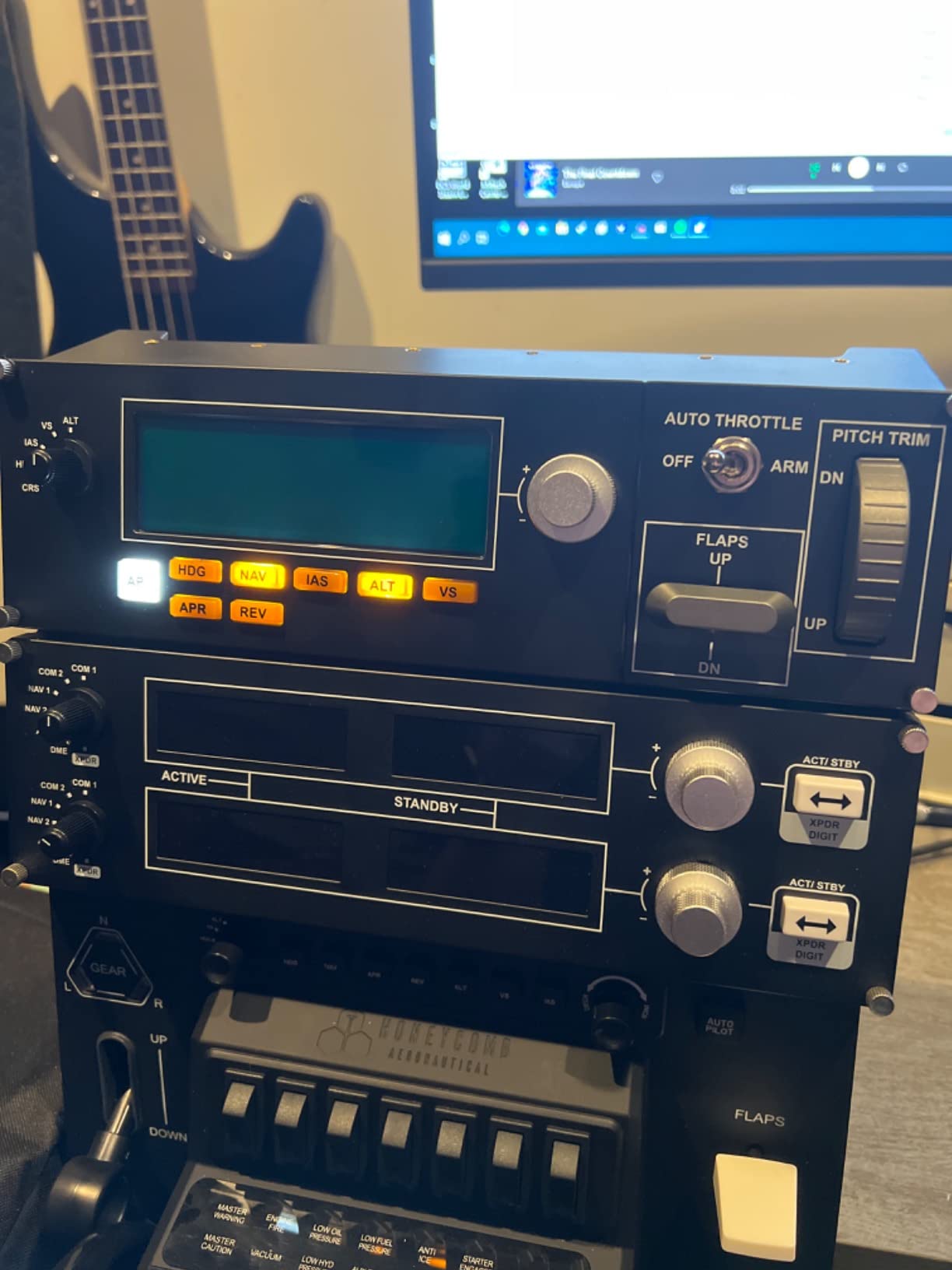
It shares the same 11.1 by 2.48 by 3.31 inch footprint and under-a-pound weight as the switch panel, with 10 buttons and mounting brackets included, and mounts directly to the Pro Flight Yoke System or a home cockpit. Compatibility is listed for MSFS, FSX, X-Plane and Prepar3D, and the modular mounting means the whole desk stack reads as one system rather than a pile of separate devices.
The recurring theme in reviews is setup friction, not hardware quality. MSFS 2024 generally needs SPAD.NXT or equivalent before it is detected, the knob detents feel light and imprecise against a real autopilot panel, and the higher USB power draw means a powered hub is often necessary. Instrument values may also need a button press to re-engage after you turn a dial.
Who this setup suits
This suits a beginner who has decided to learn instrument procedures properly, because it is the only panel here that makes the autopilot workflow something you do with your hands. It stacks with the switch panel and mounts on the same yoke system, so a full general-aviation-to-airliner desk builds out of parts you add over months rather than one expensive purchase.
It is also a strong second-year purchase. Almost nobody should buy this on day one, and almost everyone who buys it in year two wonders why they waited.
Who should skip it
Skip it if you have not yet flown a stable approach manually, because the autopilot is a tool for practising a procedure you already understand. Skip it if you are on a laptop with no spare USB bandwidth and no hub, given the power draw.
Also check your simulator before buying. Support in X-Plane 11 is limited compared to MSFS and Prepar3D, and if X-Plane is your primary sim this is a riskier buy than it looks.
9. Turtle Beach VelocityOne Flight — The Best All-in-One Flight Sim Setup for Console Players
Turtle Beach VelocityOne Flight Universal Control System – Xbox Series X & Xbox Series S, Xbox One & Windows 10 & 11 PCs with Yoke Handle, Throttle Quadrant, Trim Wheel & Rudder Controls
Yoke throttle trim rudder and brakes
180 degree hall effect rotation
Modular throttle
Pros
- One box covers yoke throttle trim rudder and differential brakes
- Hall effect sensor gives smooth non-drifting control
- Rudder and brake controls sit at your fingertips
- Full colour setup display and status indicator panel
Cons
- The most expensive option in this lineup
- Pedal peg for the rudder controls is sold separately
- Software and setup are less refined than Logitech or Thrustmaster
This is the one to buy if you want a single box that covers every axis, or if you are on Xbox where nothing else on this list gives you a complete package. The yoke, throttle quadrant, trim wheel, rudder and brake controls all ship together, and unlike every other option here you are not assembling a setup from three purchases.
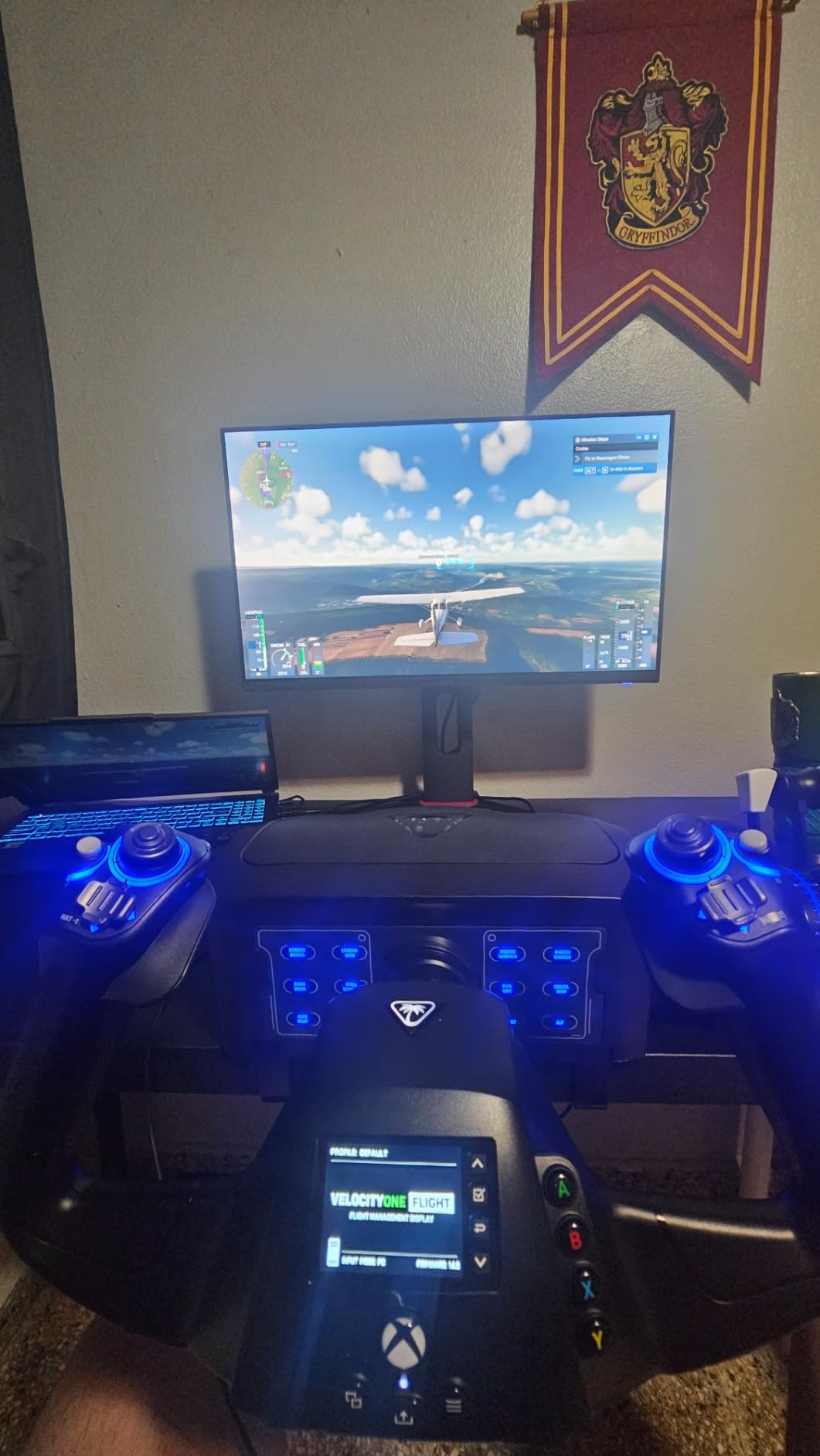
The hall-effect yoke sensor is the technical strength. A 180 degree true-to-life yoke rotation on a contactless sensor gives smooth, non-drifting control, and with 26 buttons, 12 analog axes, two POV switches and two 4-way hats there is a very large control surface to bind. The dedicated pitch trim wheel and the full colour flight management display are both genuinely useful, and the setup display turns first-time configuration from guesswork into a guided process.
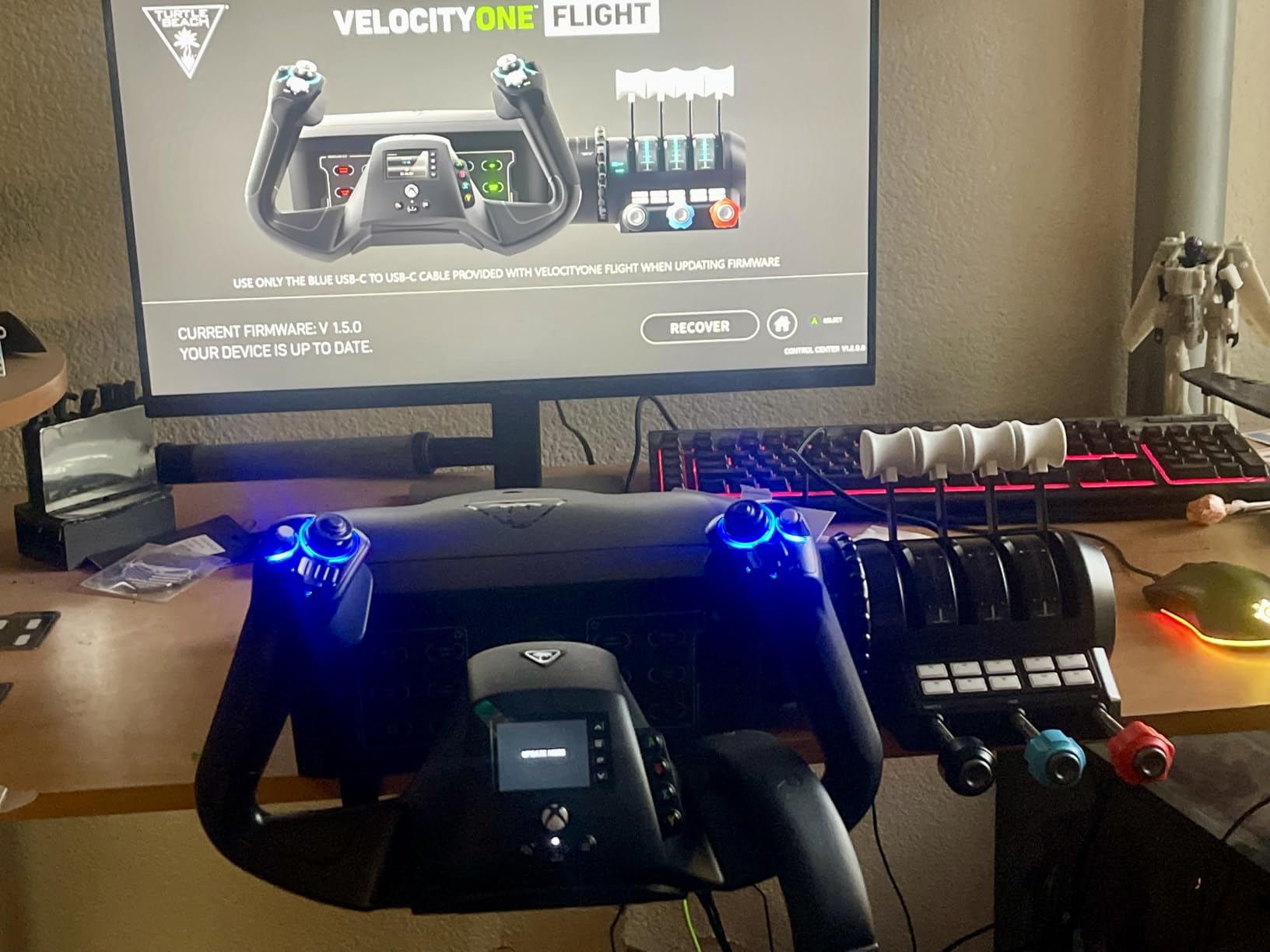
It runs on Xbox One, Xbox Series S and Series X as well as Windows 10 and 11, weighs 10 pounds, measures 19.01 by 7.2 by 19.5 inches, and uses a secure clamping system rather than a loose desk mount. The modular throttle quadrant with customizable lever handles is a nice touch for twin-engine work, and the status indicator panel for PC fills in the gap the Xbox does not have.
The 4.1 rating is the second lowest here, and the reasons are consistent. It is the most expensive option on this list for what is ultimately a mid-range set of axes, and the rudder and brake controls require a foot peg sold separately — which undercuts the “everything in one box” promise. The software and setup experience is less refined than the Logitech and Thrustmaster ecosystems, and an integrated hand rudder is never going to match floor pedals on a long cross-country flight.
Who this setup suits
This suits a console player with no access to a PC, and a buyer who would rather configure one device in an afternoon than research three. The colour setup display and the status indicator panel make it the most approachable package here for someone who has never touched flight sim hardware before, and the clamping system means it stays put on a desk without an aluminium frame.
It also suits a VR-curious buyer, because the clamping and the compact footprint work in a seated position where a large pedestal would not.
Who should skip it
Skip it if you are on PC and buying components separately. Several reviewers who did exactly that report that a Thrustmaster HOTAS plus a separate pedal set covered the same axes for a lower total, and the software experience is better documented. That is the core criticism of this package and it is fair.
Skip it if cross-country flying is the plan, because the integrated rudder will be the limiting factor long before the yoke is. We go through the full trade in our cockpit and rig comparison for anyone building beyond a desk.
Yoke vs Joystick vs HOTAS: The First Real Decision
Yoke, joystick or HOTAS is the decision that shapes everything else, and the short version is this: fly general aviation and airliners on a yoke, fly combat and vintage warbirds on a joystick, and pick a HOTAS if you want pitch, roll, throttle and rudder from one device and nothing else on the desk. Beginners most often regret a hotas-first purchase, because they learn a skill set that transfers badly to a yoke-equipped airliner.
Why the yoke wins for beginners is a question of muscle memory. A yoke trains you to push and pull against a wheel with both hands, which is what the aircraft in front of you will require. A HOTAS trains fine hand movements, which is beautiful in a space sim and mildly awkward when you later sit in a 737. If you are undecided about what you want to fly, a yoke is the safer bet.
The joystick wins on control density and on realism for aircraft where a yoke would feel absurd — fighters, bombers, and taildragger warbirds where the stick is genuinely part of the experience. The trade is that you need a separate throttle, and if you do not buy one, you are back to keyboard throttle management, which is where a lot of beginners stall.
Our practical rule after testing all three layouts: buy the pitch control that matches the aircraft you will actually spend time in, and buy a throttle in the same order if it is not included. Everything else in this guide is an accessory to that decision.
Do Beginners Actually Need Rudder Pedals?
Not in the first ten hours, and this is the most useful piece of advice in the entire guide. The pedals are the third purchase, not the first. What they are genuinely needed for is taxiing, differential braking and crosswind landings — and those are skills that only make sense once you can hold a stable approach.
There is a real minority who never buy them at all. One user in the spending-order thread runs no pedal set and flies with keyboard or rocker switches instead, and they fly competently. If you only ever fly airliners from a starting position on the ground where the sim auto-aligns you, you can go a long time without them.
The counter-argument is the one we find most convincing. A real pilot quoted in our research notes that in the sim, pedals are used mainly for taxi and crosswind landings, and in turns only light pressure is applied. That means the pedal skill is short to learn and immediately useful, and once you have it, taxiing stops being the thing that ruins your landings. The TFRP and the Logitech Pro Pedals are both perfectly sized first pedals; neither is expensive relative to what it teaches.
One alternative worth mentioning: sim racing pedal sets work as rudder input and feel familiar if you already have them, which reduces the learning curve. They are a bridge, not a destination — the pedal shape and travel are wrong for flying, so treat them as a temporary answer while you decide.
The Upgrade Order: What to Buy First, Second and Third
Buy the pitch and roll control first. It is the axis that determines whether you enjoy the hobby, it is the axis you use in every single flight, and everything else is optional. A stick-and-throttle combination such as the T-Flight Hotas X or the T-Flight Hotas One covers that first purchase in one box and is the answer we give most often.
Buy the rudder pedals second, once you have around 20 to 30 hours and you have identified taxi or crosswind as your weak point. Do not skip straight to a premium yoke, because pedals fix a specific technical weakness that better pitch hardware does not. If your yoke already includes a throttle, this second purchase is a smaller outlay than the first.
Buy the panels third, and only the ones matching what you fly. A switch panel is for general aviation, a multi panel is for airliner instrument work, and neither helps you fly a jet. Force feedback comes fourth or later, once you know you will still be flying in a year — a common thread in every forum thread we read was advice to save up for force feedback only after the hobby has hooked you.
Everything after that — cockpit frames, multi-monitor stands, VR, motion platforms — is a hobby within the hobby. We are not saying avoid them, we are saying do not start there.
PC vs Xbox and What Your Rig Needs to Run MSFS
Microsoft Flight Simulator leans on the processor more than most people expect, and the GPU matters, but neither is the first thing to fix when the hobby is new. Buying a better computer before buying a control device is the classic beginner mistake, because the software runs acceptably on mid-range hardware and the mouse-and-keyboard experience is the actual barrier.
On platform, PC gives you every hardware option on this list plus calibration tools, higher refresh rates, and access to the wider simulator range. Xbox gives you two working options — the T-Flight Hotas One and the VelocityOne Flight — and a much lower barrier to entry if you do not own a gaming PC. Both T-Flight sticks and the TFRP pedals work across console generations and PC, which is the deciding factor for a lot of households.
Our order of operations: get the control device first, fly for a month, and only then look at your frame rate. If MSFS is stuttering while you are taxiing, the problem is the control device, not the processor.
Axis Conflicts and Calibration: Fixing Duplicate Inputs
The most common technical complaint across every forum is duplicate axis inputs, and the fix is always the same. When you combine a device with a built-in throttle with a separate quadrant, both map the same thrust axis and your throttle input doubles, doubling the power or applying it in the wrong direction.
Step one is calibration, in the simulator’s own control settings: set each axis to its full travel and confirm the correct device is selected for each one. Step two is binding: in MSFS, X-Plane or your sim of choice, clear the duplicate binding on whichever device you are not using for that axis. Step three is a saved profile, because re-binding every session is the part that makes people give up on mixing brands.
Calibration utilities exist for exactly this, and they matter more than most buying guides admit. Tools in this family let you map macros, remap switch panels that the sim does not natively see, and set per-device profiles that load at startup. The Logitech switch panel and multi panel both need one of these for reliable MSFS 2024 support, and the X56 benefits from one to clean up its button map.
Mixed-brand setups are not the problem. Duplicate bindings are. Every device here is USB standard, so any of these can sit with any other — the software just needs to know which one owns which axis.
What Not to Buy Yet
Do not buy force feedback first. It is a genuine upgrade and it feels impressive for ten minutes, but the hardware that most improves your flying is pedals, and a force feedback yoke is an expensive answer to a problem beginners do not have yet.
Do not buy a cockpit frame or a motion platform at the start. Frames take a floor, a chair position and a tolerance for cable management that is a lot to ask before you know the hobby. Everyone who ends up with a permanent rig got there by outgrowing a desk, not by planning one.
Do not buy cheap potentiometer pedal sets expecting them to be a stopgap. Short, gritty travel teaches you an anxious pedal technique, and the damage to your crosswind landings is harder to undo than the money. If the price difference between a good set and a bad one is the deciding factor, wait and fly with yaw buttons until you can afford the right one.
Do not buy a full HOTAS to decide whether you like flight simming. If the answer is no, the full HOTAS was the most expensive way to find out. Start with a mouse, a keyboard and free hours, or borrow one.
Frequently Asked Questions
Which flight simulator is best for beginners?
Microsoft Flight Simulator is the usual starting point for general aviation because it has structured lessons, a forgiving default aircraft and broad platform support. X-Plane 12 suits people who want deeper aircraft systems study, and DCS World and IL-2 Sturmovik are better later than first. Whatever you pick, buy a three-axis control device before you buy anything else.
Should I get a yoke or a joystick?
Buy a yoke if you will fly general aviation or airliners, because two-handed pitch and roll is what those aircraft require and it is the easier habit to learn. Buy a joystick for combat, space and vintage warbird flying, where control density and realistic control feel matter more than the two-handed input. If you are undecided, a yoke is the safer first purchase.
What should I buy first for flight simulation?
Buy the pitch and roll control first — a yoke or a joystick, ideally a HOTAS that includes a throttle so two of the three required axes are covered. Rudder pedals come second, once you have identified taxi and crosswind as a weak point. Switch panels and force feedback come third and later, if at all.
Is MSFS CPU or GPU heavy?
Microsoft Flight Simulator leans more on the processor than most beginners expect, with the CPU driving the world and the GPU handling rendering and the wider outside view. Neither is the first thing to upgrade: a mid-range machine runs it acceptably, and the real barrier for new pilots is flying with a mouse rather than hardware performance.
Can I use Xbox flight sim hardware on a PC?
Yes, most Xbox flight hardware is standard USB and works on a Windows PC without modification. The T-Flight Hotas One and the TFRP pedals are designed for both, and the Turtle Beach VelocityOne Flight runs on Xbox consoles and Windows 10 and 11. The reverse is not true: PC-only devices such as the Logitech X56 have no console path at all.
What is the best affordable flight sim setup for a beginner?
A stick and throttle combination that covers pitch, roll, thrust and basic rudder is the most affordable complete starting point, and it needs nothing else for the first twenty hours. Add self-centering rudder pedals with differential toe brakes when taxiing and crosswinds start costing you landings. Switch panels and force feedback can wait a year.
Conclusion: The Best Flight Sim Setup for Beginners in 2026
Buy pitch and roll first, a throttle in the same purchase if you can, and pedals second. That ordering is the single most useful thing in this guide, and it is the opposite of how most beginners spend. The Thrustmaster T-Flight Hotas X is our pick for a new pilot on a budget because it covers two axes, sits on a normal desk and has the deepest owner review record of anything here.
If you fly general aviation on a desk and want a realistic two-handed feel, the Logitech G Pro Flight Yoke System gets you pitch, roll and a throttle in one box, and it is the platform the panels in positions seven and eight stack onto. If you are on Xbox, the T-Flight Hotas One or the Turtle Beach VelocityOne Flight are your only real options, and the Thrustmaster is the better-value one of the pair.
Start with the three axes, keep the mouse in the box for the things it is good at, and give the hobby a month before you decide anything else. We will be updating this roundup in 2026 as the line-up shifts, and the upgrade path above is the order we would follow ourselves.